How can we help?

Every guide here is in the app too: open Help › Help & Support (or F1), ask in your own words, then press Show me to see the way, or Do it for me to watch it done.

Getting started

Open a PDF

Three ways to open a file. It never leaves your device.

  1. On the home screen, press the + button (Open or create) at the top.
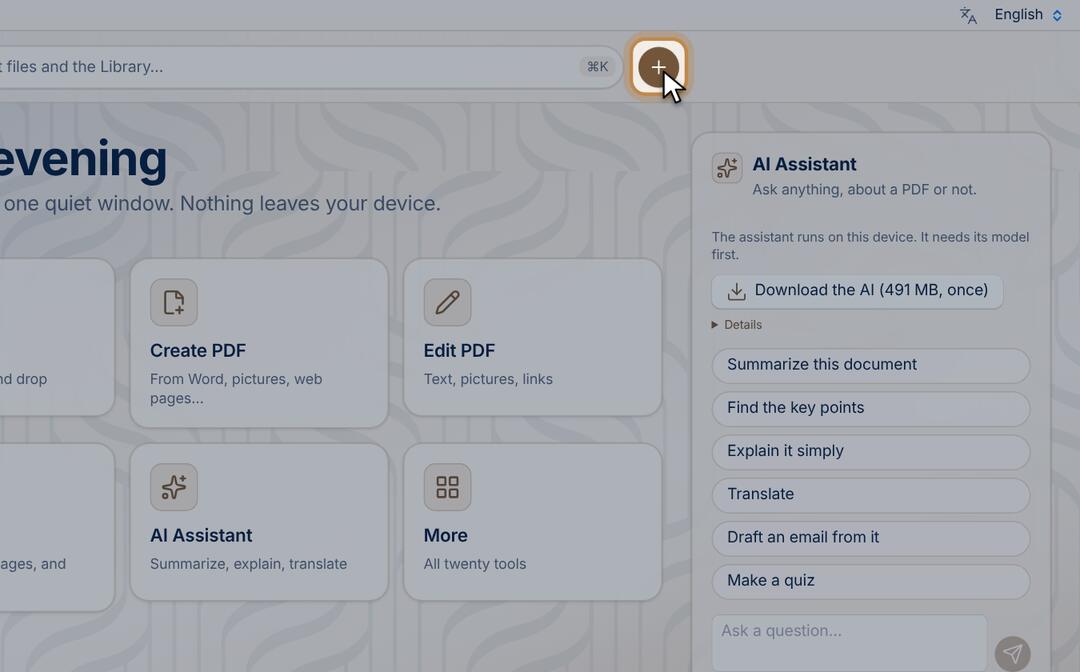
  2. Choose Open PDF…, then pick your file in the window.
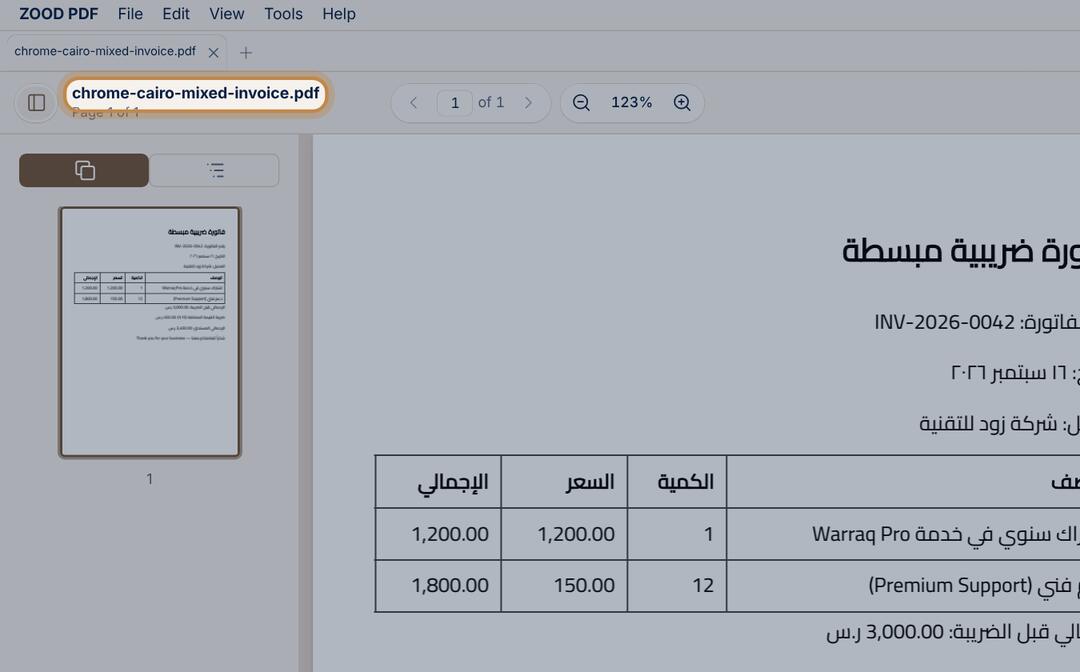
  3. The file opens with its name at the top. You can also drag a file onto the window and drop it.
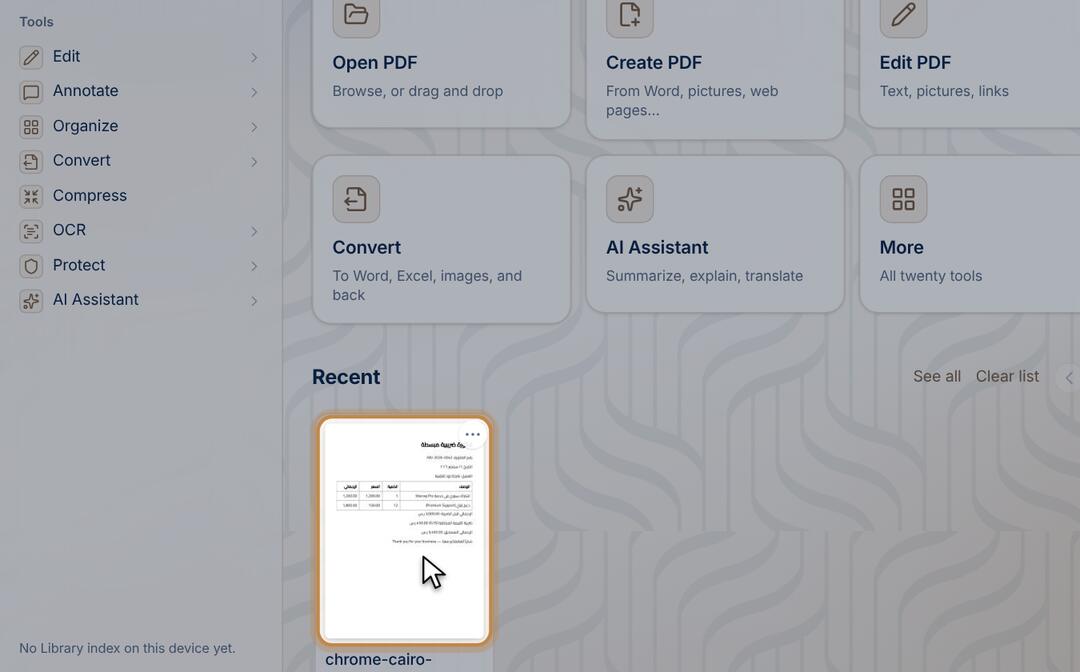
  4. Files you opened appear under Recent with a picture of their first page: click one to open it again.
  • Shortcut: Ctrl+O (⌘O on a Mac).

Save your changes

The original file stays untouched until you save.

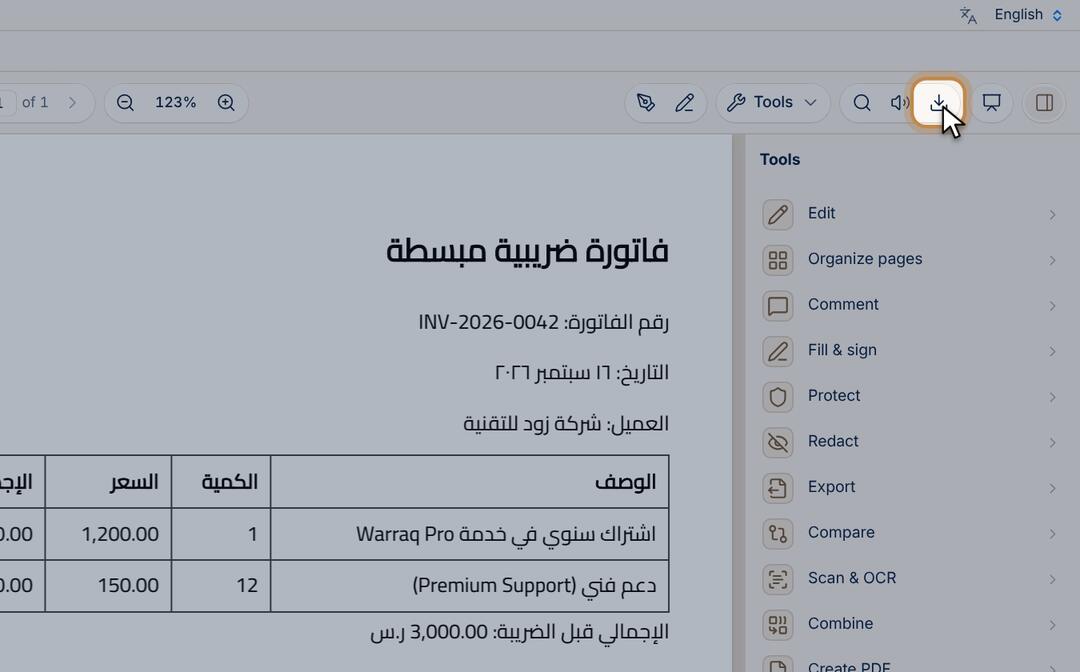
  1. Press the Save button in the top bar, or Ctrl+S (⌘S on a Mac).
  2. On the computer it saves into the same file; in a browser it downloads a new copy.
  • Every saved version is kept under Versions, so you can go back.

Change the language and the look

Arabic or English, light or dark, and several looks.

  1. Open Settings from the app menu, then General, and choose the language.
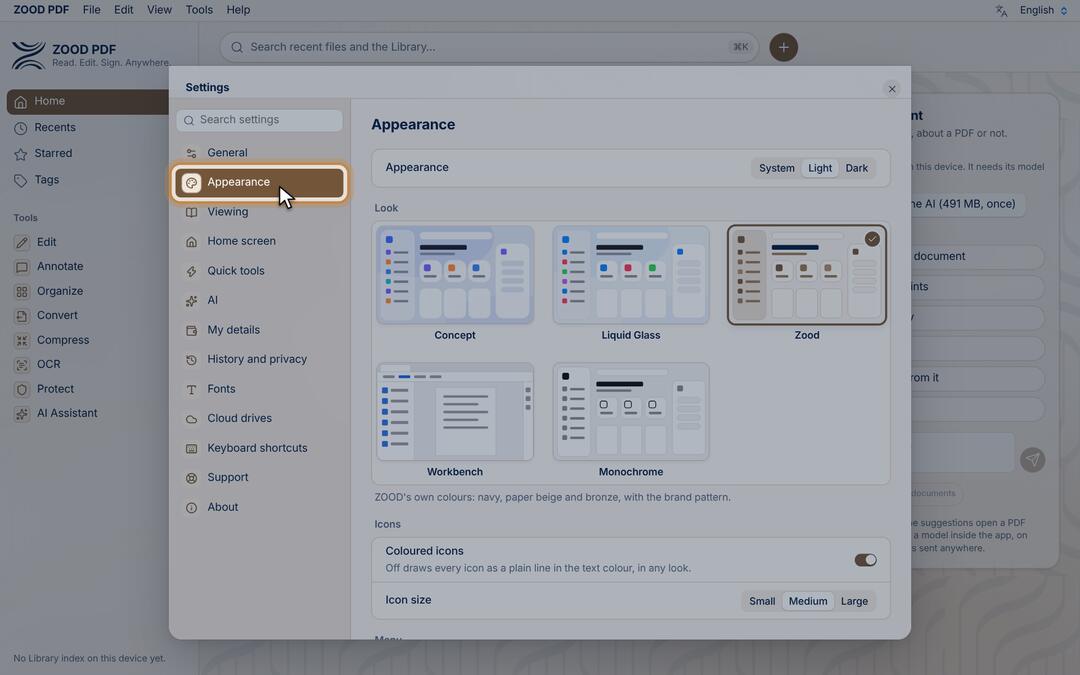
  2. Under Appearance, choose light or dark, the look, the colour and the icon size.

All tools or groups in the sidebar

One long list of every tool, or eight headings with short menus.

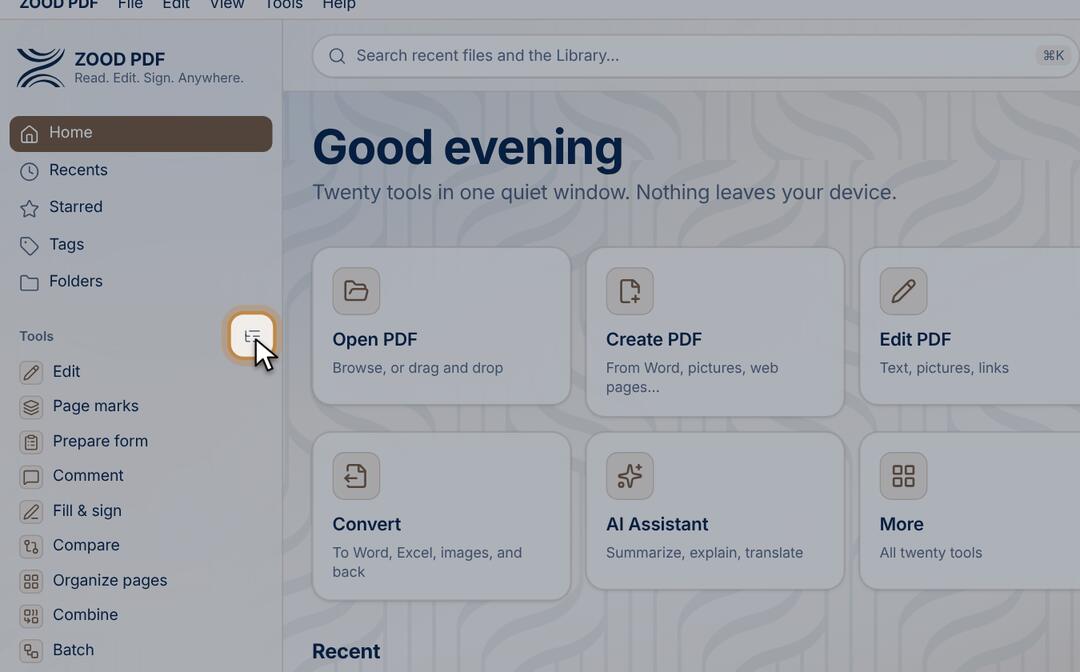
  1. On the home screen, press the small button beside Tools in the sidebar to switch.
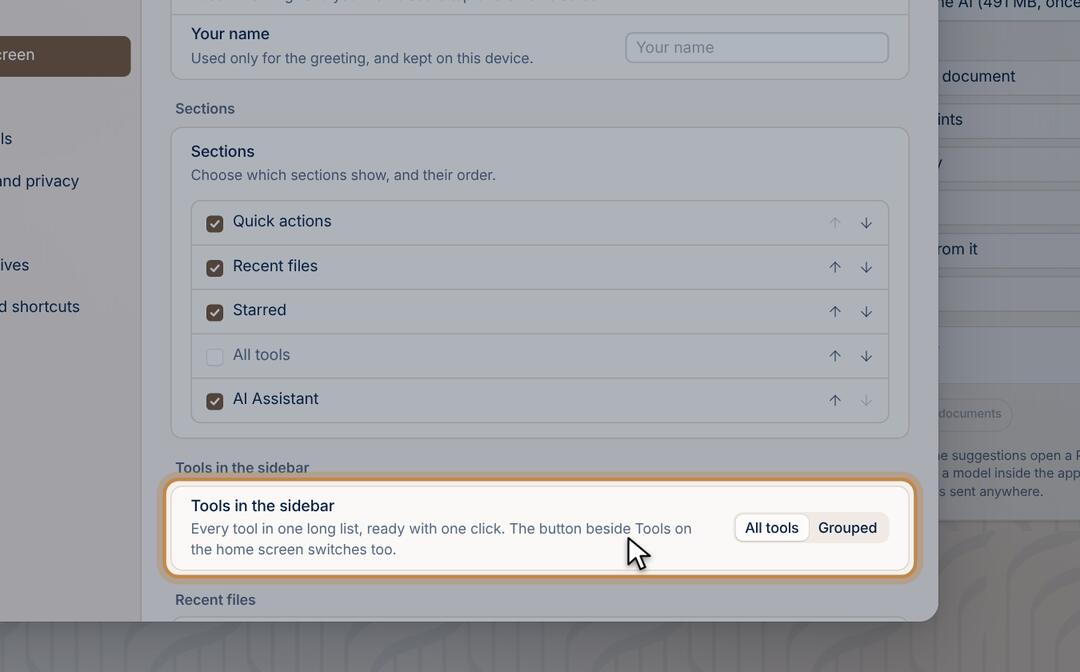
  2. Or open Settings › Home › Tools in the sidebar and choose All tools or Grouped.
  • The app remembers your choice.

Edit and comment

Edit the text in a PDF

Change words where they are, with Arabic kept correct.

  1. Open the file, then choose Edit in the tools list.
  2. Press Edit text.
  3. Click the paragraph and type. The lines reflow by themselves and Arabic stays joined. Ctrl+Enter applies the change; Esc cancels it.
  4. Then save the file.
  • To add a new line anywhere, use the Edit tool.

Highlight and add notes

Highlight, underline, add sticky notes and draw on the page.

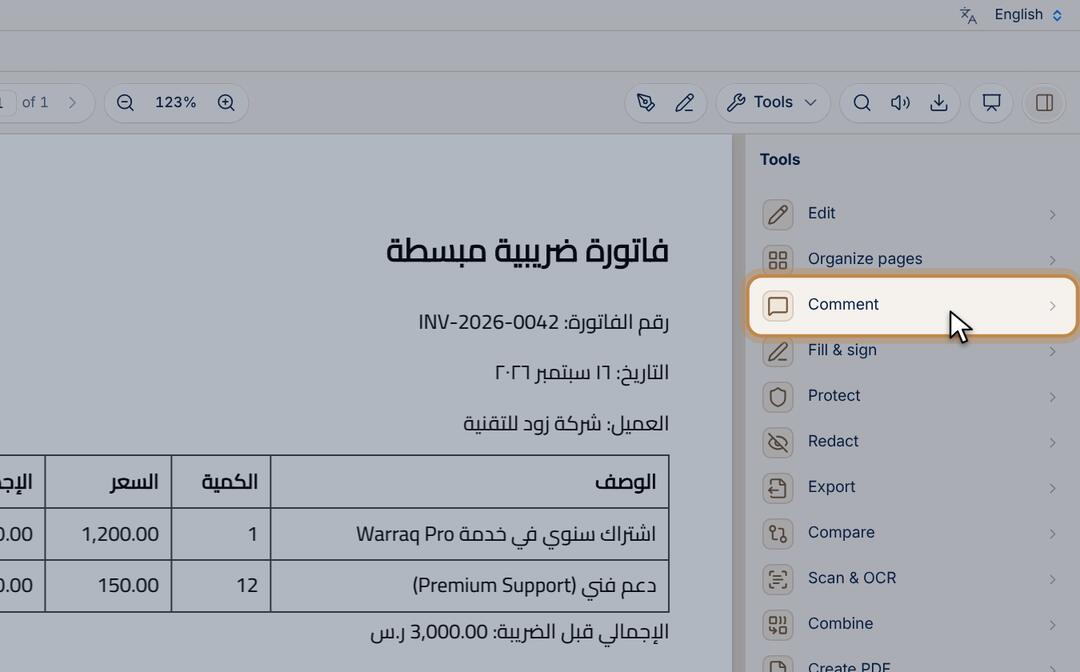
  1. Open the file, then choose Comment in the tools list.
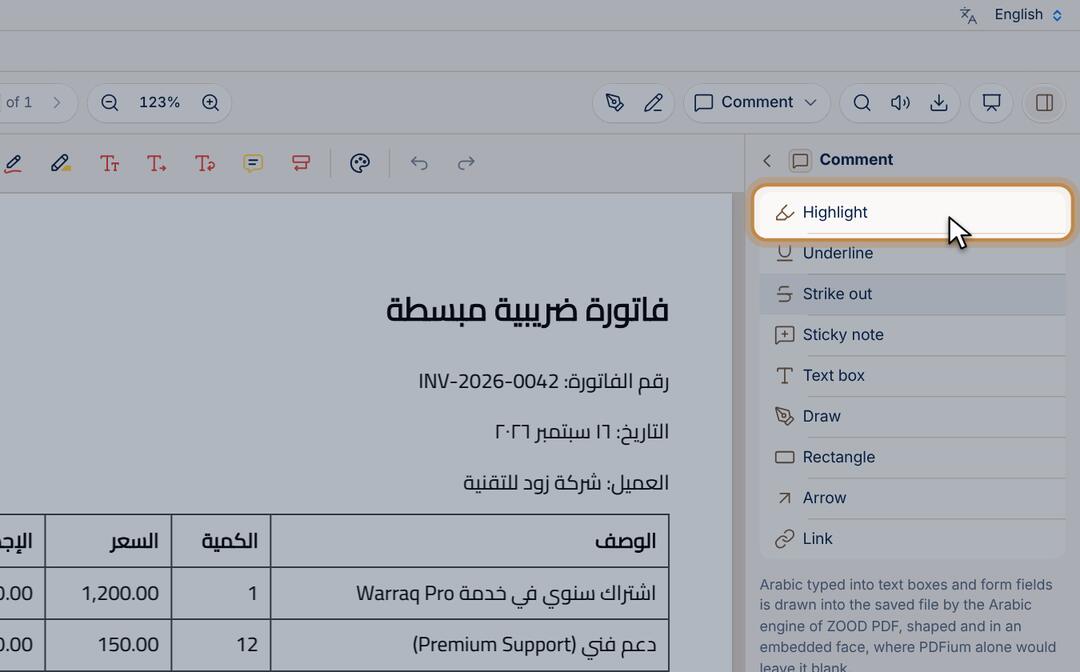
  2. Choose Highlight, then select the text with the mouse. Underline and Strike out are next to it.
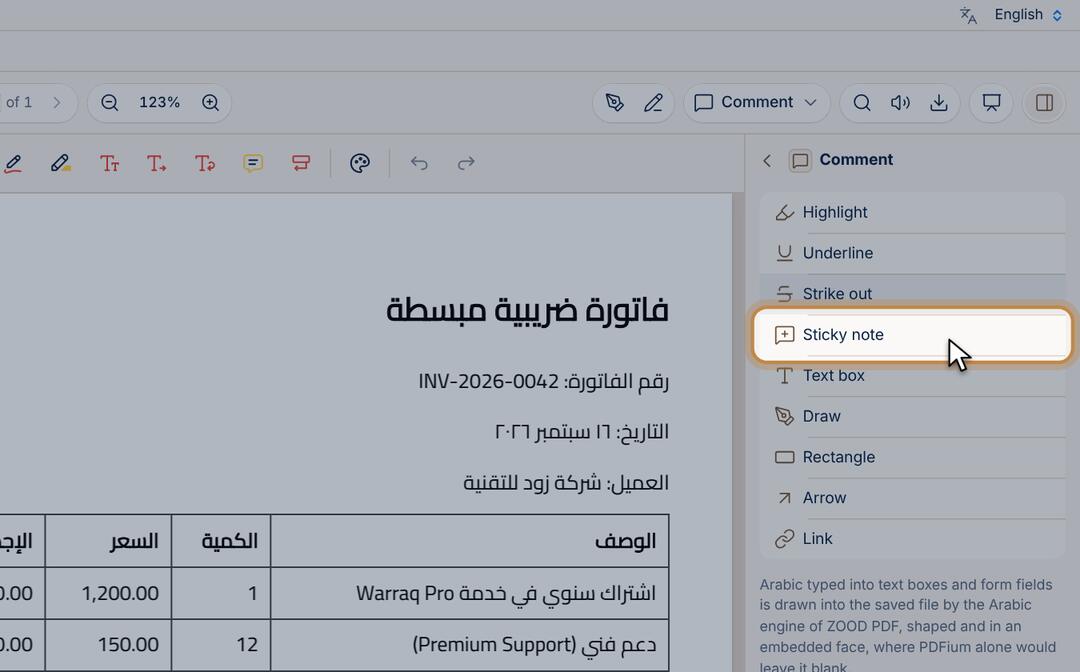
  3. For a note, choose Sticky note and click where it goes. Text box, Draw and Arrow are there too.

Pages and files

Rotate, delete and reorder pages

All the pages in front of you: drag to reorder.

  1. Open the file, then choose Organize pages in the tools list.
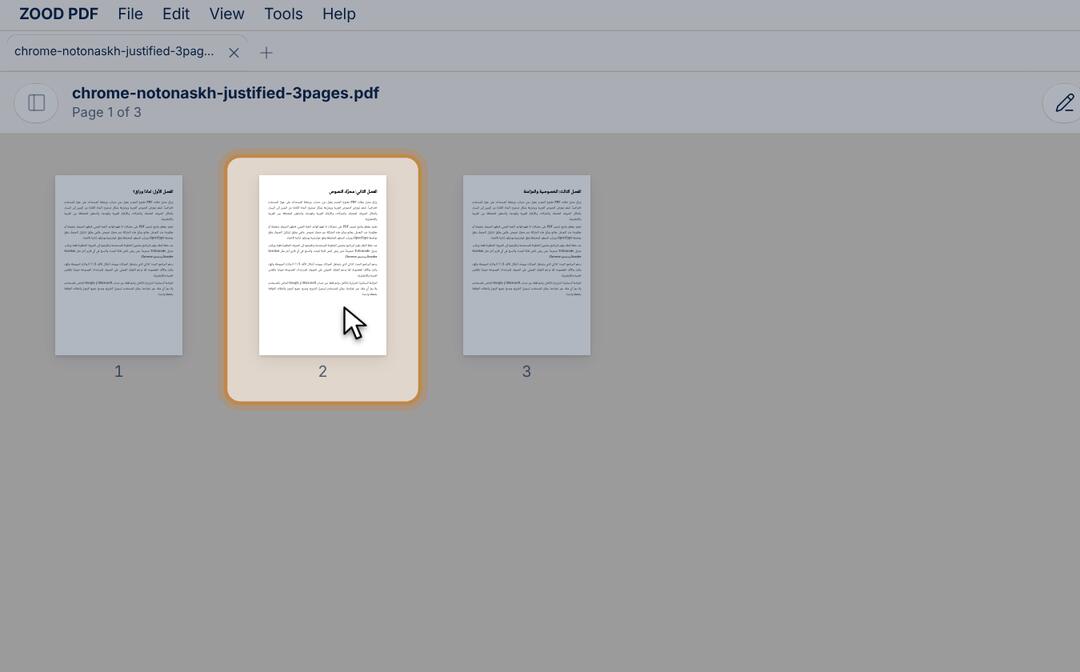
  2. All the pages appear. Click a page to select it, and drag it to move it.
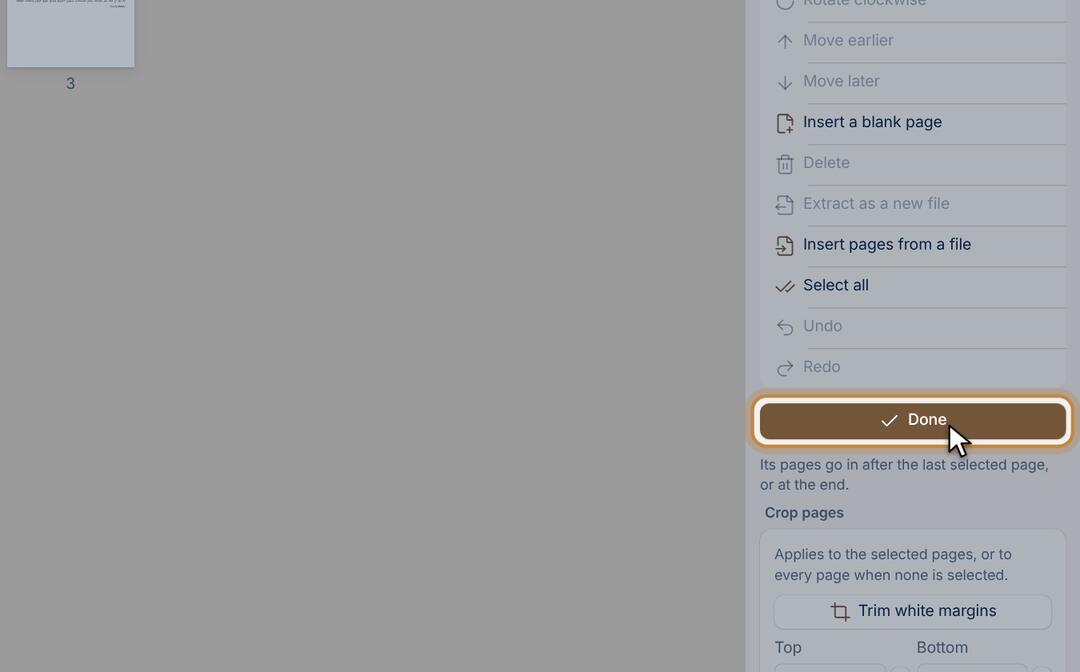
  3. With a page selected, use the buttons: rotate, delete, extract as a new file, insert a page.
  4. Press Done, then save the file.

Combine several files into one

PDFs, pictures and Office files into one PDF.

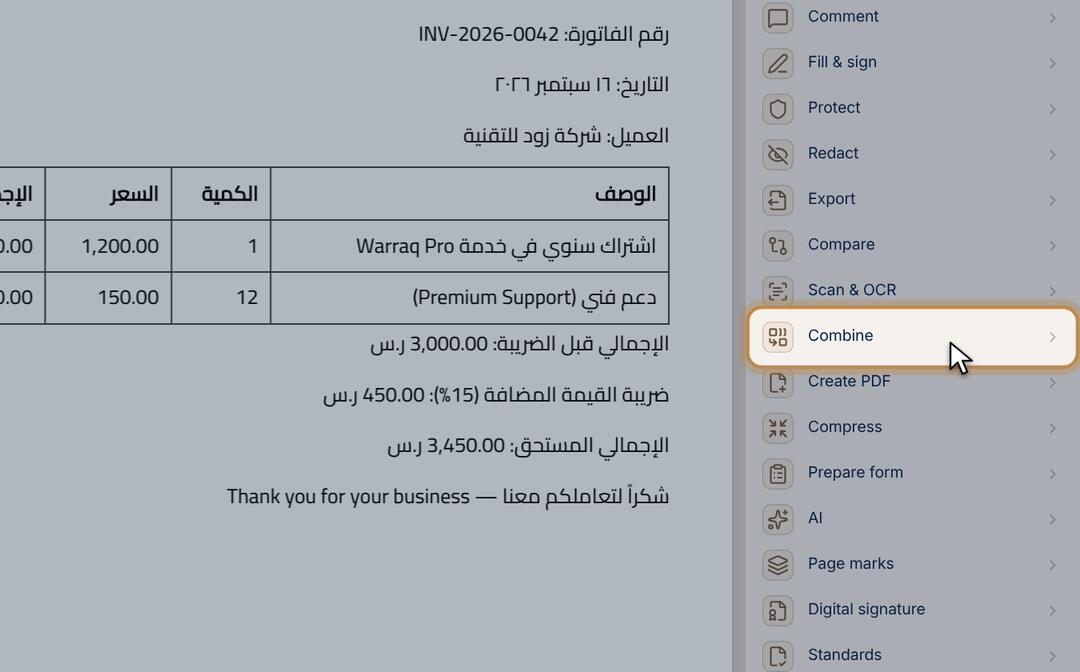
  1. Choose Combine in the tools list. The open file is the first one.
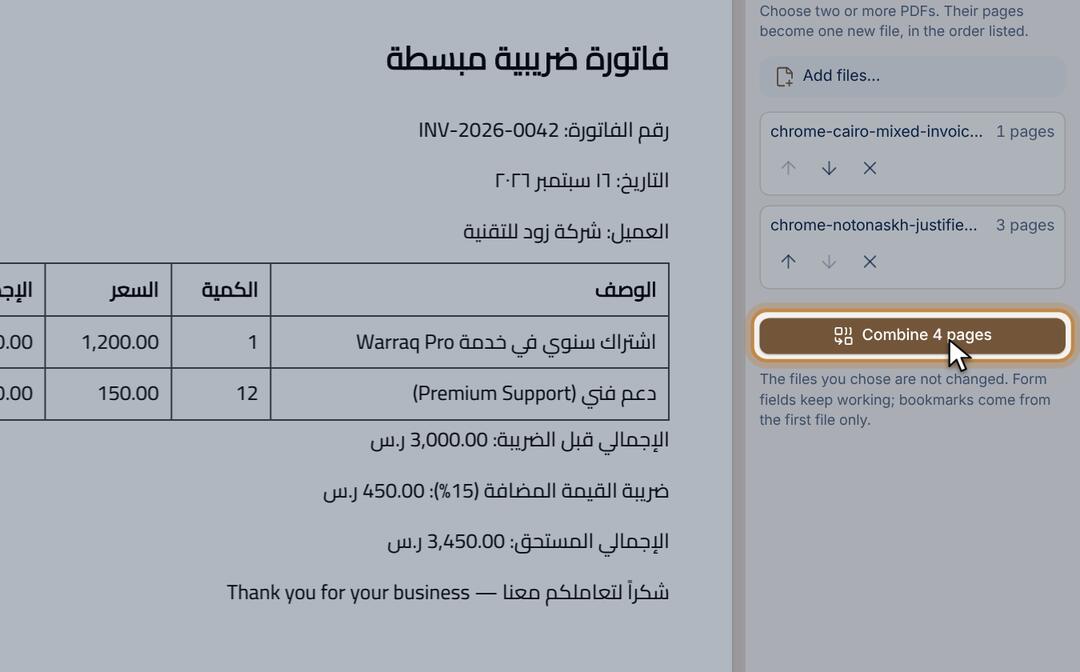
  2. Press Add files…, pick the other files, then put them in order with the arrows.
  3. Press Combine pages and save the new file.
  • On the computer: select the files in a folder, right-click and choose Combine, without opening the app.

Make a file smaller

Compress it so it goes by e-mail or WhatsApp easily.

  1. Open the file, then choose Compress in the tools list.
  2. Choose how much to shrink it. Smaller images suits sharing and printing.
  3. Press Compress. You see the size before and after; then save the smaller copy.

Compare two versions

Shows what was added and removed, word by word.

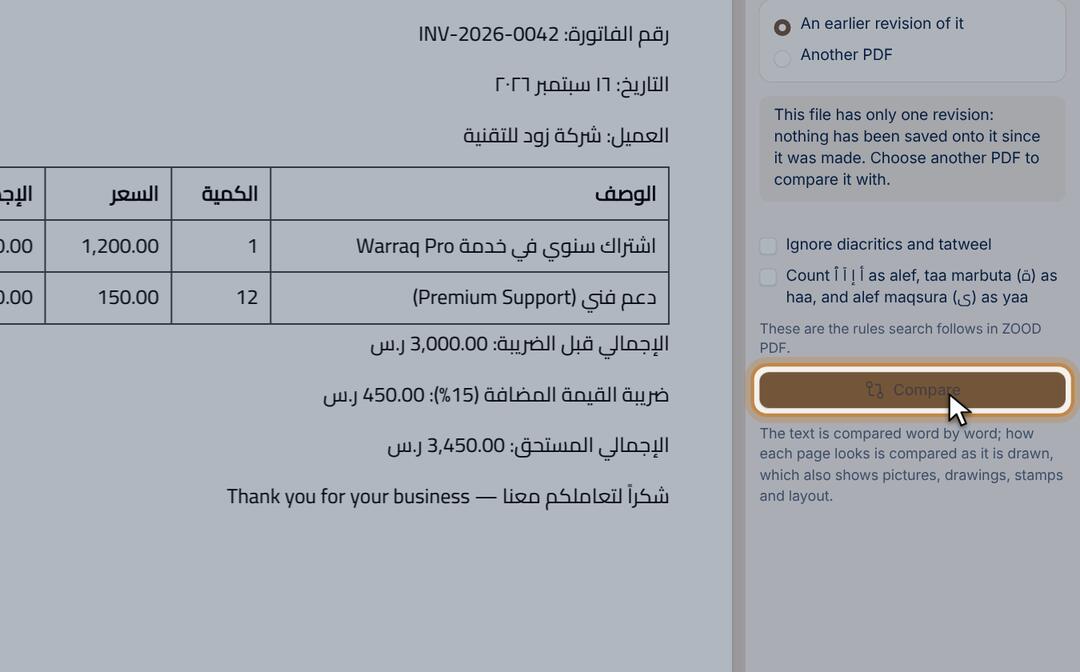
  1. Open the first version, then choose Compare in the tools list.
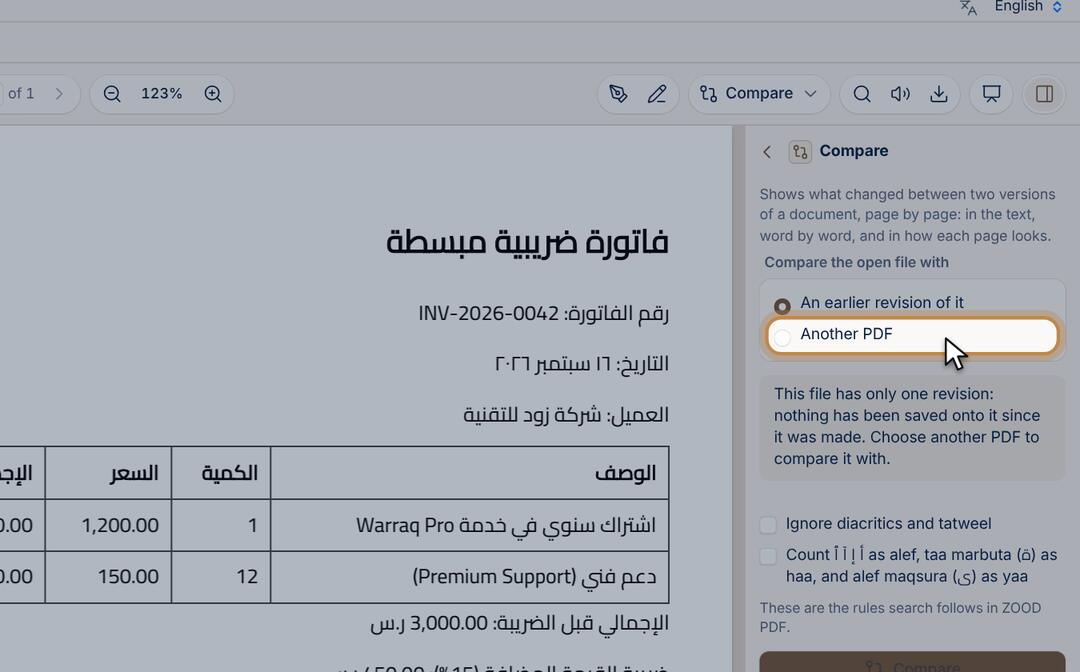
  2. Choose what to compare it with: an earlier saved revision of the same file, or another PDF.
  3. Press Compare. What was added and removed shows word by word.

Your folders on the home screen

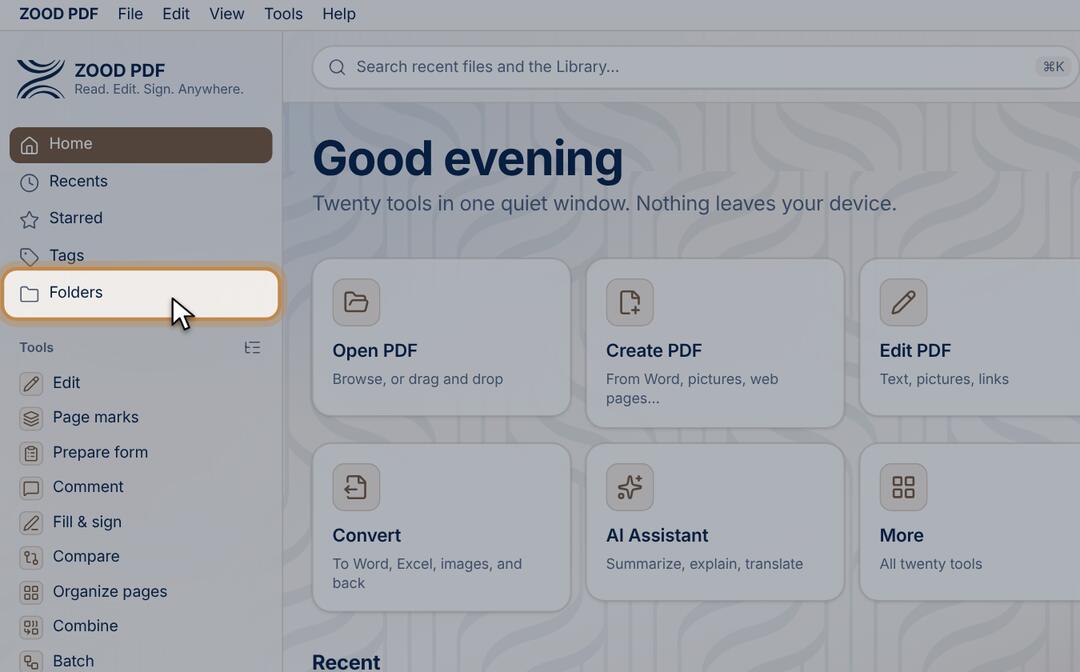
Folders keeps your folders, and your cloud drives, in one place. Your files stay where they are.

  1. In the home screen sidebar, click Folders.
  2. Click New folder and choose one of your folders.
  3. Click any folder to see its files, then click a file to open it.
  4. If your copy has OneDrive or Google Drive, it is under Cloud drives: click it and sign in once.
  • Nothing is moved or copied: the app only reads the files so it can search them.

Search across all your files

The Library searches every file you added, not just the open one.

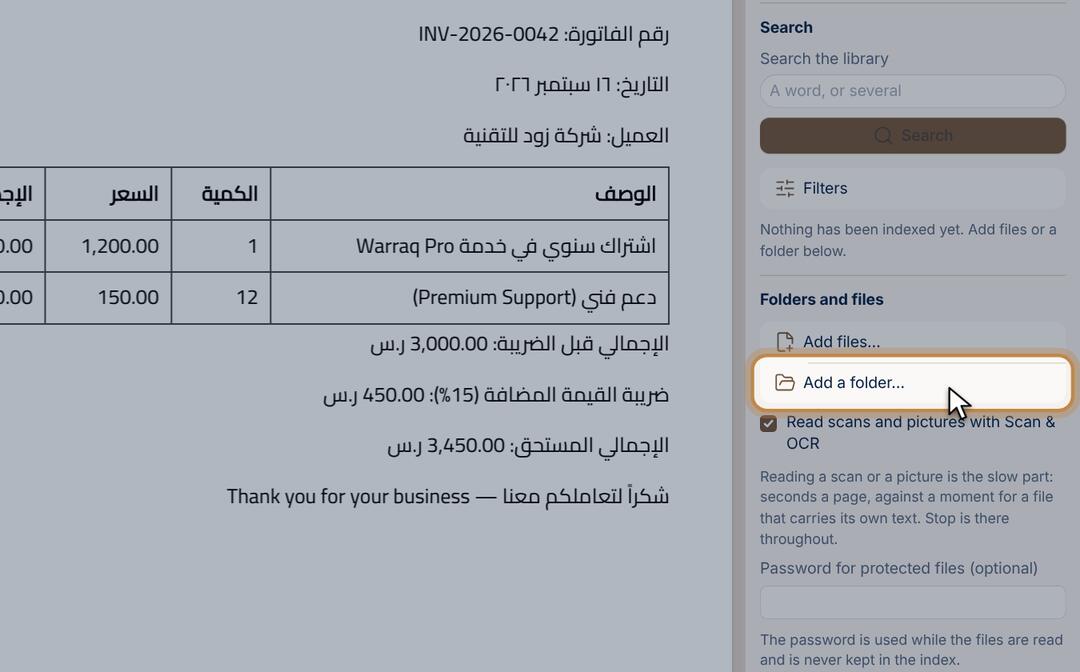
  1. Choose Library in the tools list.
  2. Press Add a folder… and choose the folder with your files.
  3. Type a word in the search: the files and pages with it appear.

Fill and sign

Fill in a form and sign it

Type into the fields and sign by hand or with a picture of your signature.

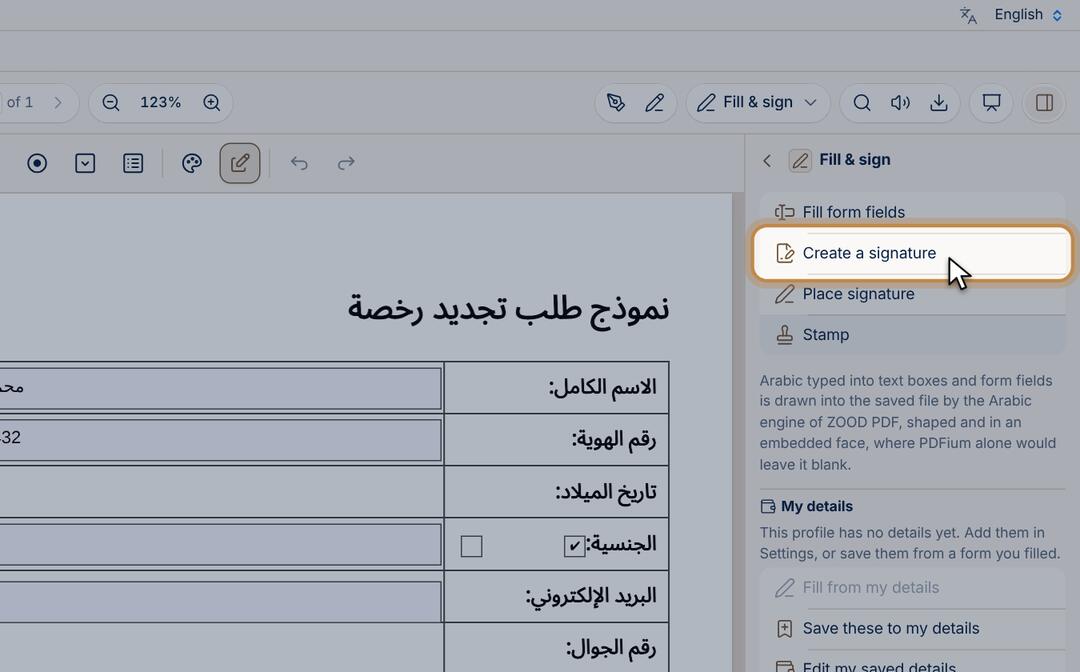
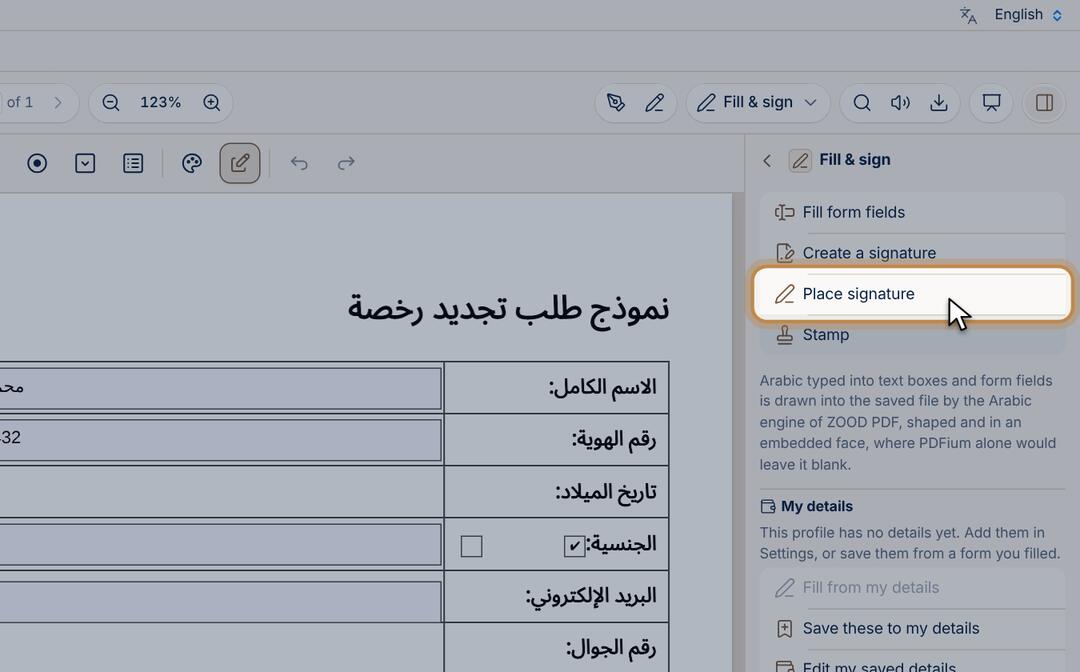
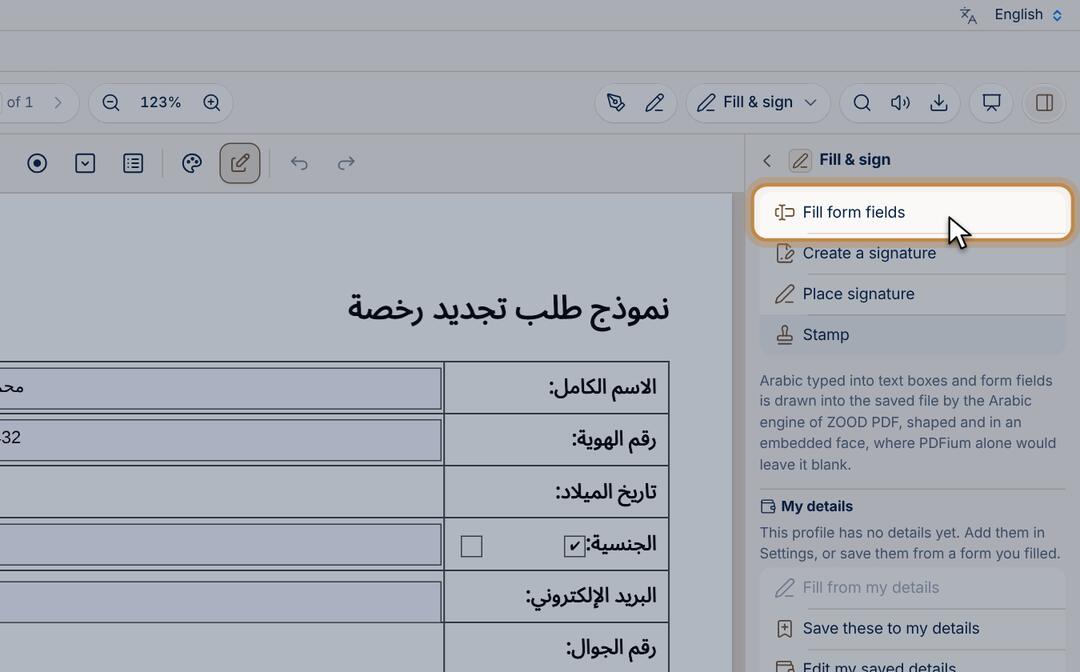
  1. Open the form, then choose Fill & sign in the tools list.
  2. Press Fill form fields, then click any field on the page and type.
  3. Press Create a signature: draw it, type it or pick a picture of it.
  4. Press Place signature, click where it goes on the page, and save.
  • Your details (name, address, bank) in Settings › My details fill forms in one click, and stay on your device.

Convert and create

Read a scanned file (OCR)

Turn page pictures into text you can search and copy, in Arabic and English.

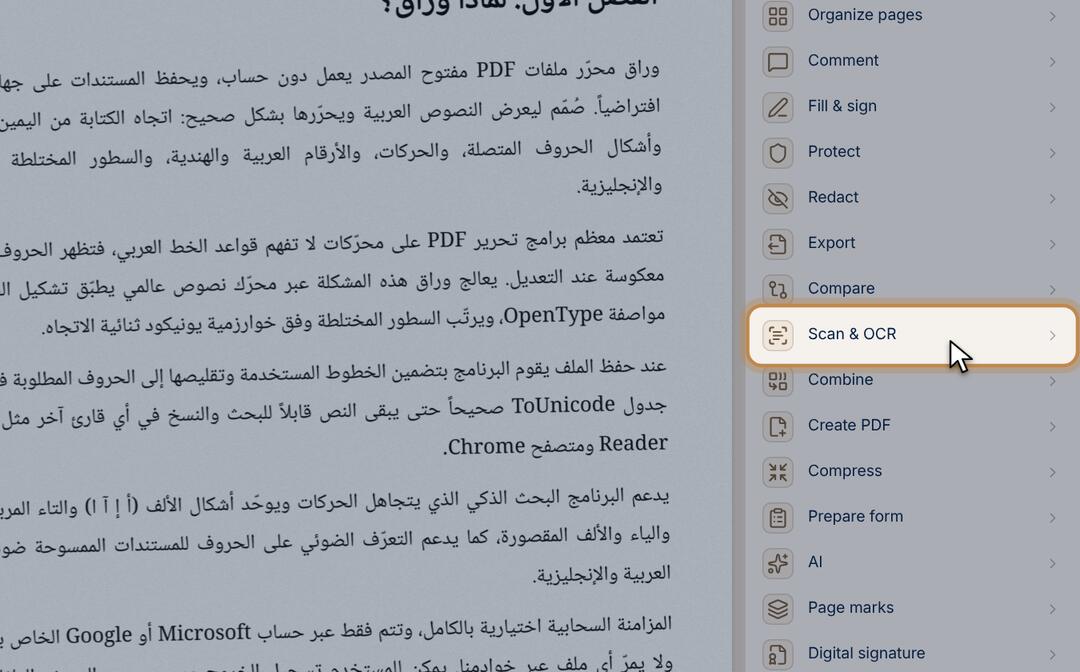
  1. Open the scanned file, then choose Scan & OCR in the tools list.
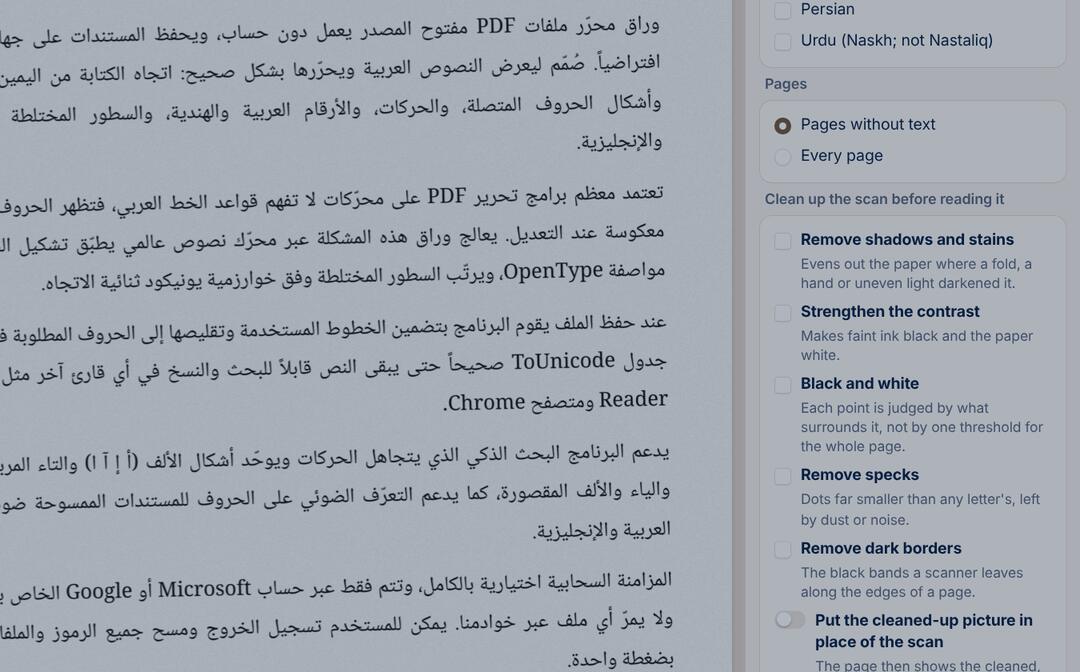
  2. Choose the languages on the page: Arabic and English are already ticked.
  3. Press Recognize text. When it finishes, the text can be searched and copied. Save the file.

Turn a PDF into docx, xlsx or pptx

Export the text, tables and slides, with Arabic right to left.

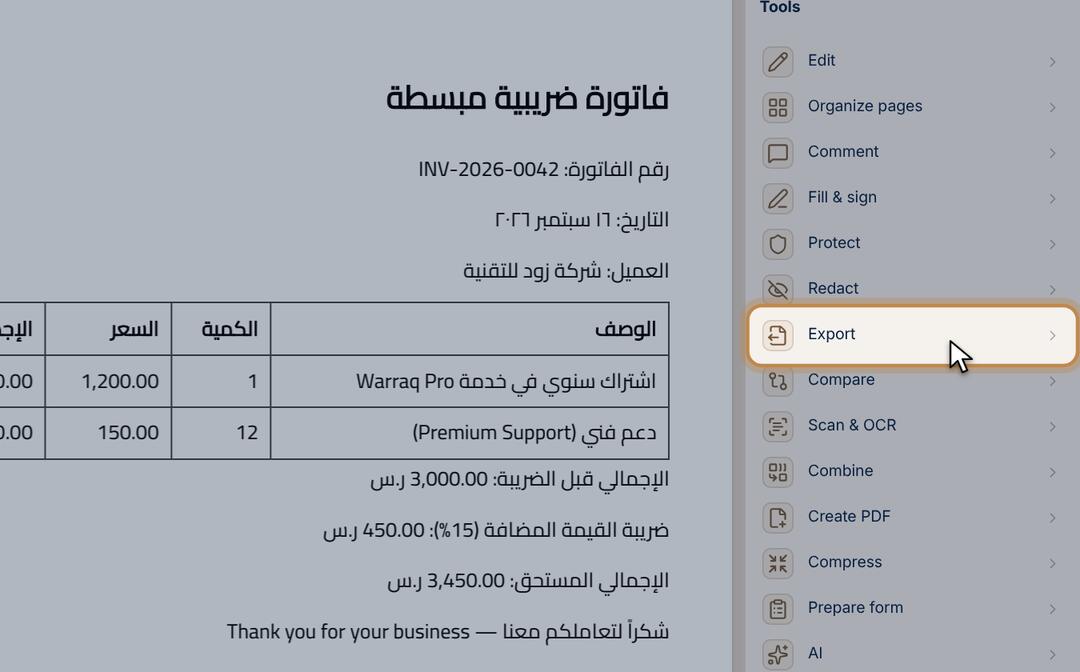
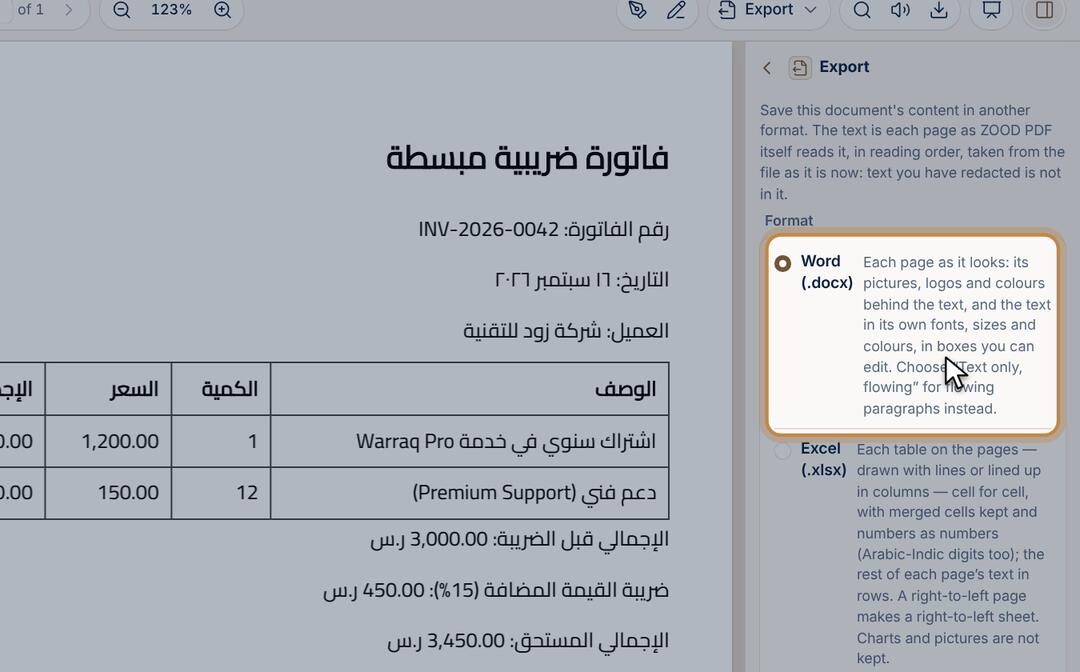
  1. Open the file, then choose Export in the tools list.
  2. Choose the kind: a docx document, an xlsx sheet, pptx slides, pictures or text.
  3. Press Export and save the file.
  • A docx export carries the text as flowing paragraphs, not the exact page layout.

Make a PDF from a document or pictures

docx, xlsx and pptx files and pictures to PDF.

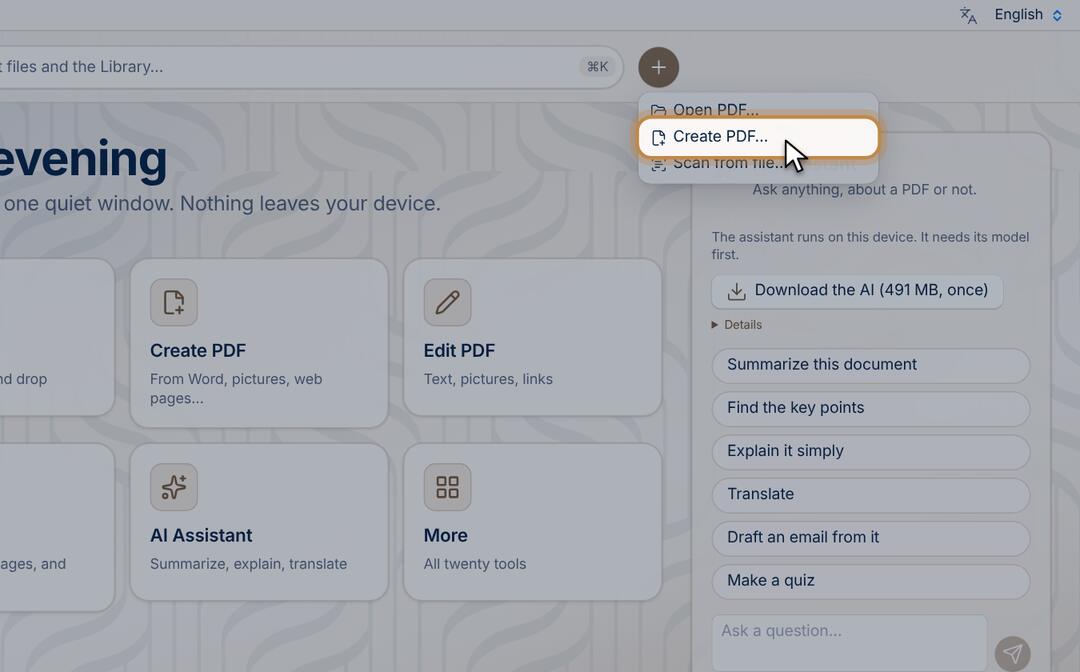
  1. On the home screen, press the + button, then Create PDF….
  2. Press Add files… and pick the document or the pictures. Several files become one PDF, in order.
  3. Choose the page size if you like, then press Create PDF and save it.

Protect and privacy

Put a password on a file

Only someone with the password can open it.

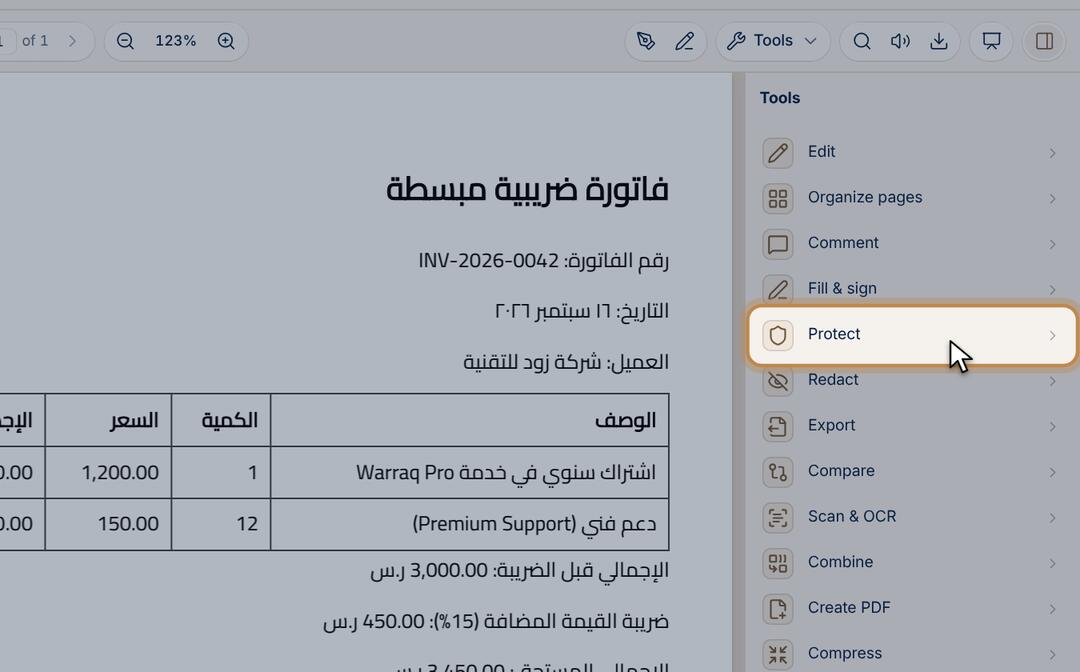
  1. Open the file, then choose Protect in the tools list.
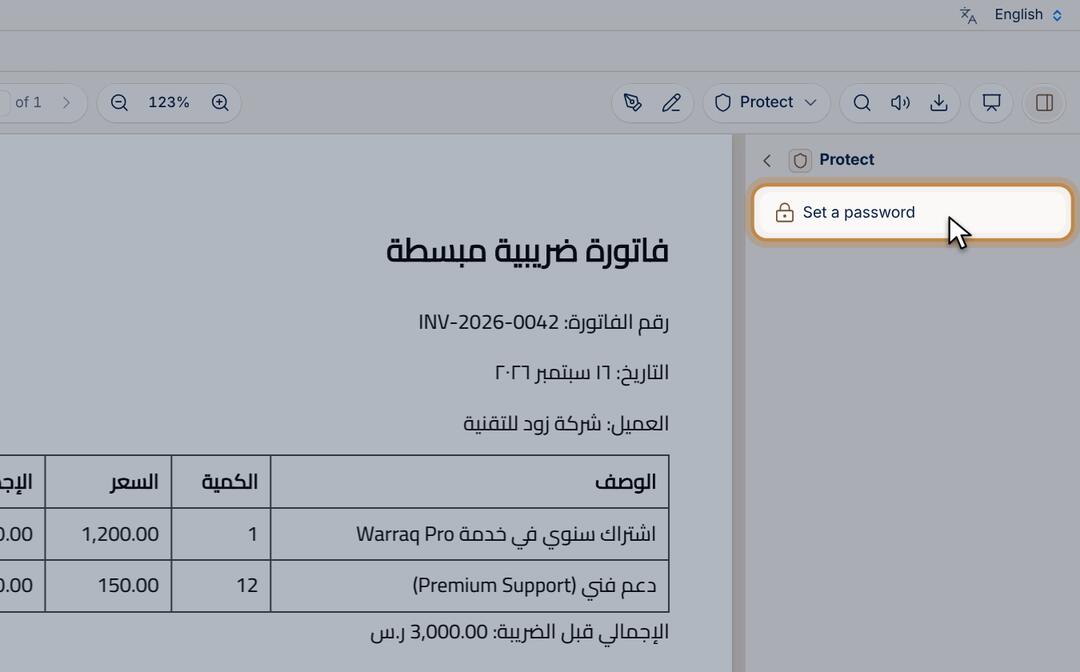
  2. Press Set a password and type it twice.
  3. Save the file. Keep the password: it cannot be recovered.

Remove private details for good

Redaction really removes the text, it does not just cover it.

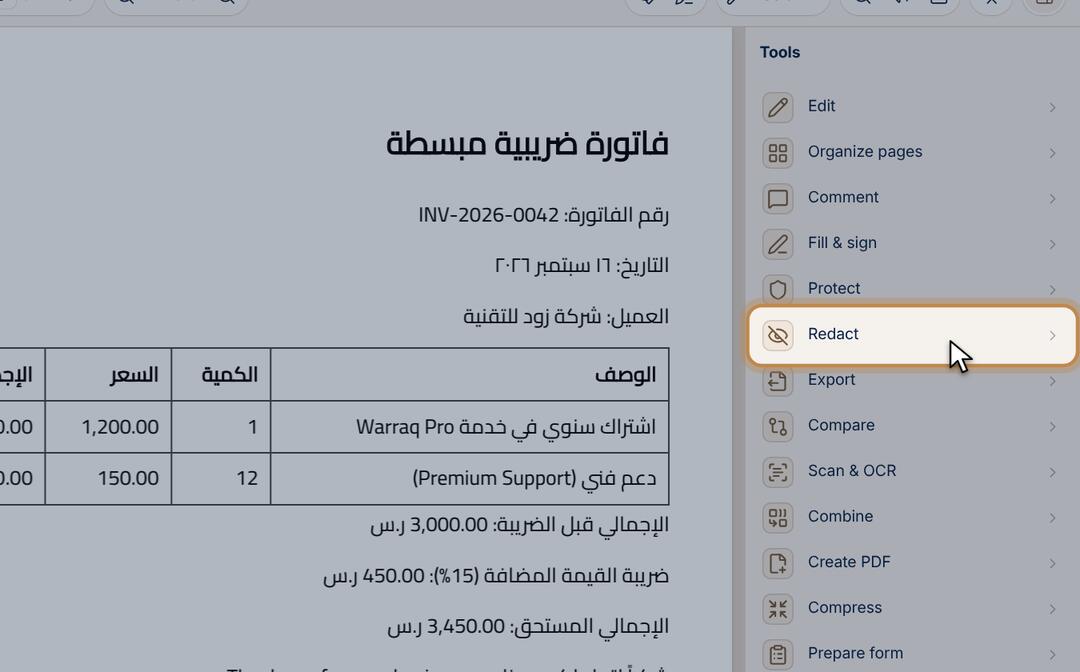
  1. Open the file, then choose Redact in the tools list.
  2. Press Mark text to redact and select the text, or Mark an area for part of the page.
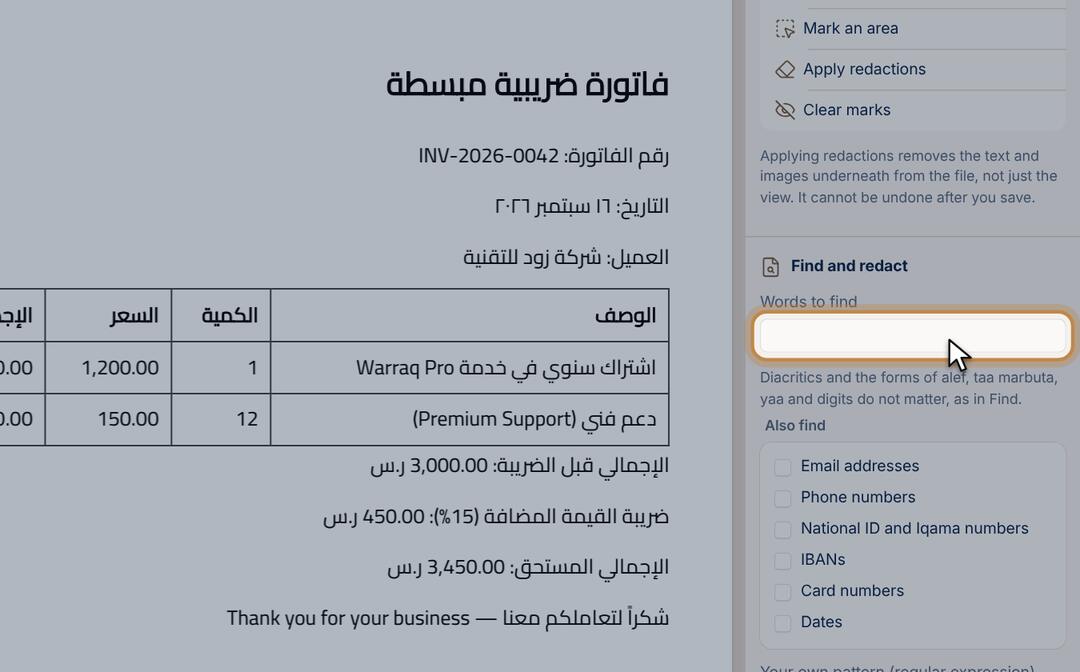
  3. Or type a word under Words to find to mark it on every page, with e-mails, numbers and IDs too if you like.
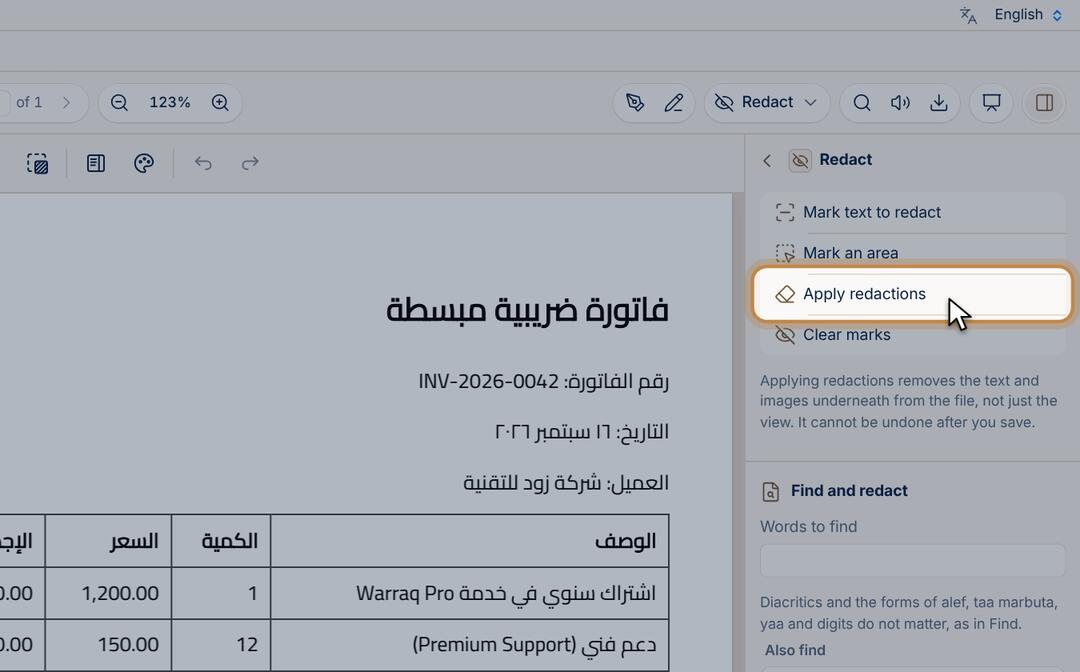
  4. Press Apply redactions, then save. The text is really removed from the file.

AI

Listen to a file

The app reads the page to you in an Arabic or English voice.

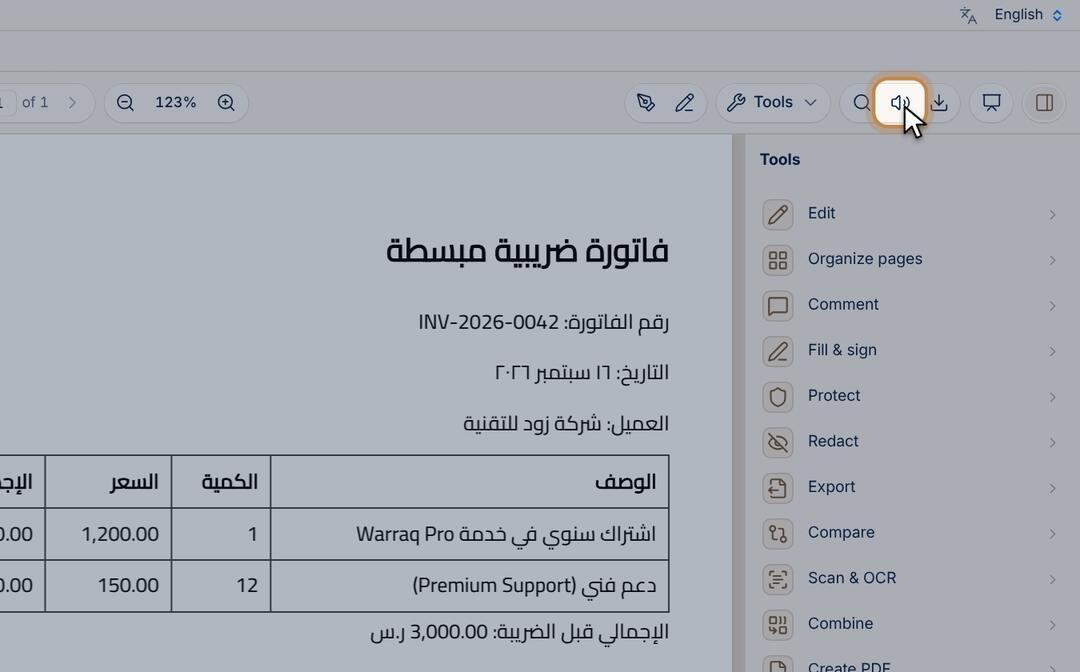
  1. Open the file and press Read aloud in the top bar.
  2. Choose: this page, from here to the end, or the selection.
  3. Change the speed and the voice in the same bar.

Ask the AI about your file

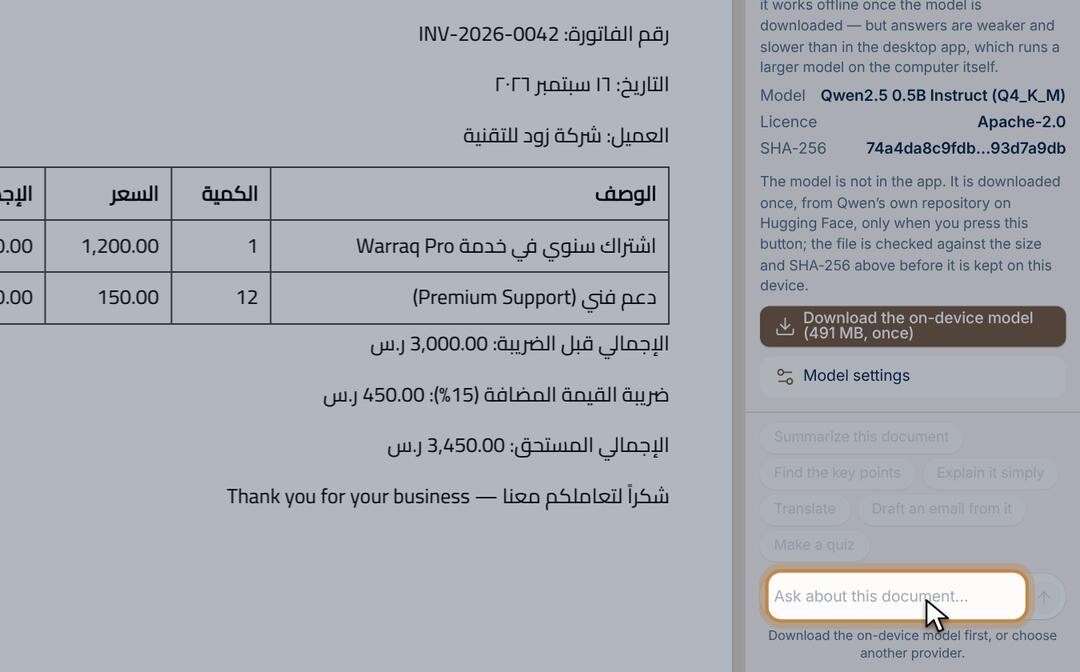
Summarize, ask and translate. It runs on your device, offline, once downloaded.

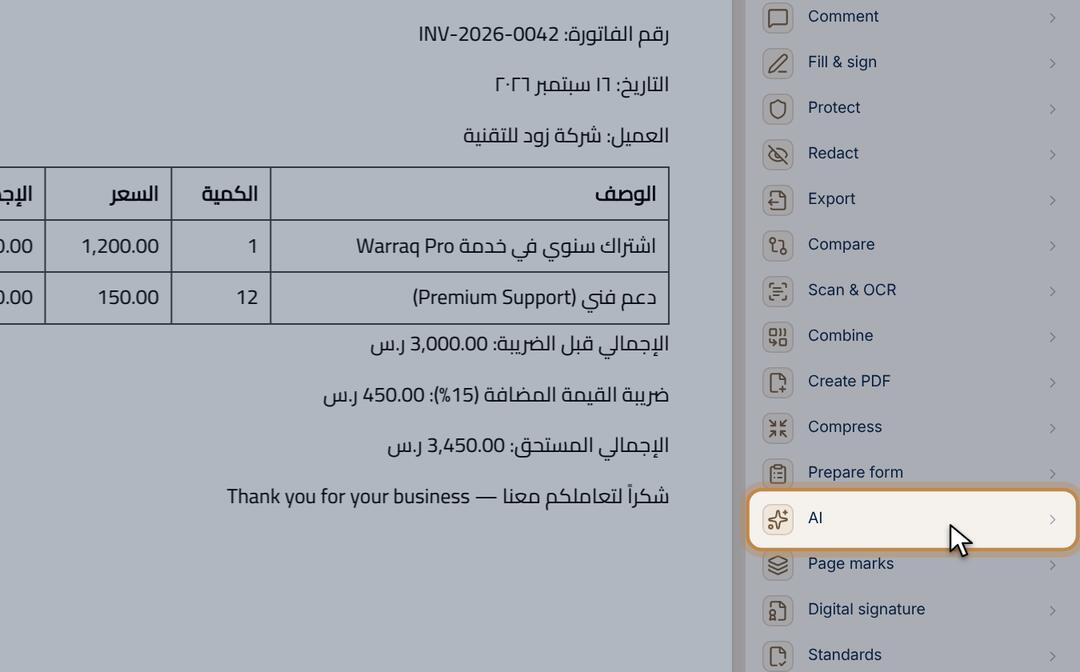
  1. Open the file, then choose AI in the tools list.
  2. The first time, download the model once (it then works offline). Then type your question. The answer names the page it came from.

Ask ZOOD in any app Desktop

Speak or type a request, in any app, with a key you choose.

  1. Tap your key once (Right Ctrl, or Right Command ⌘ on a Mac, unless you changed it) and say what you want. Tap it again or just stop talking.
  2. In a reply box in any app, tap the same key twice quickly and it writes the reply for you. It never sends it.
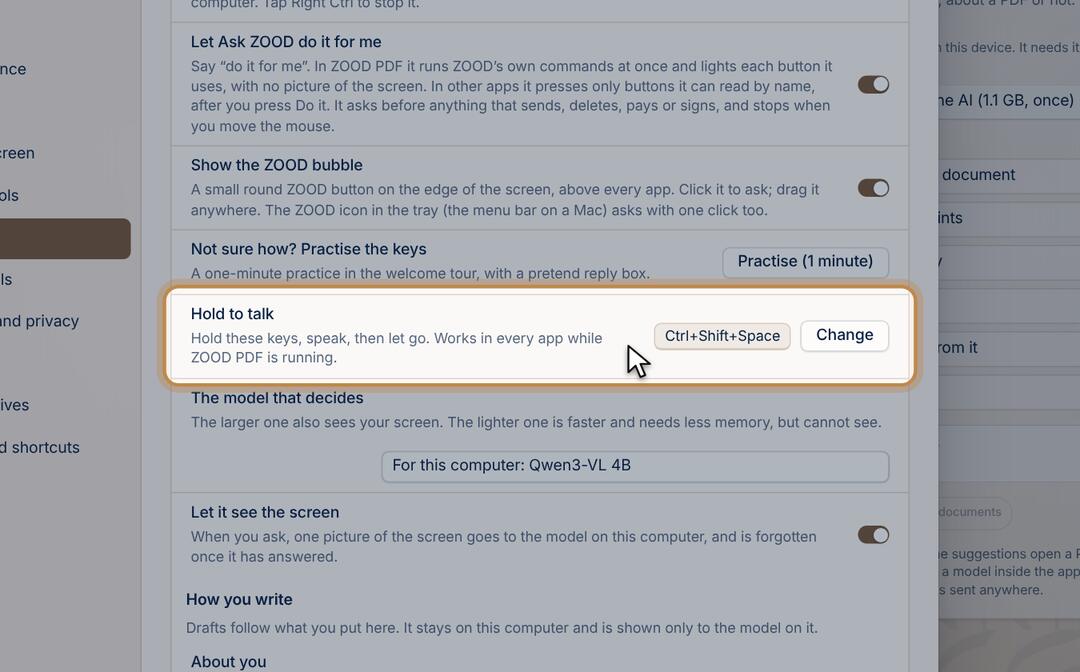
  3. Or hold the Hold to talk keys and speak, then let go. These are different keys from your tap key.
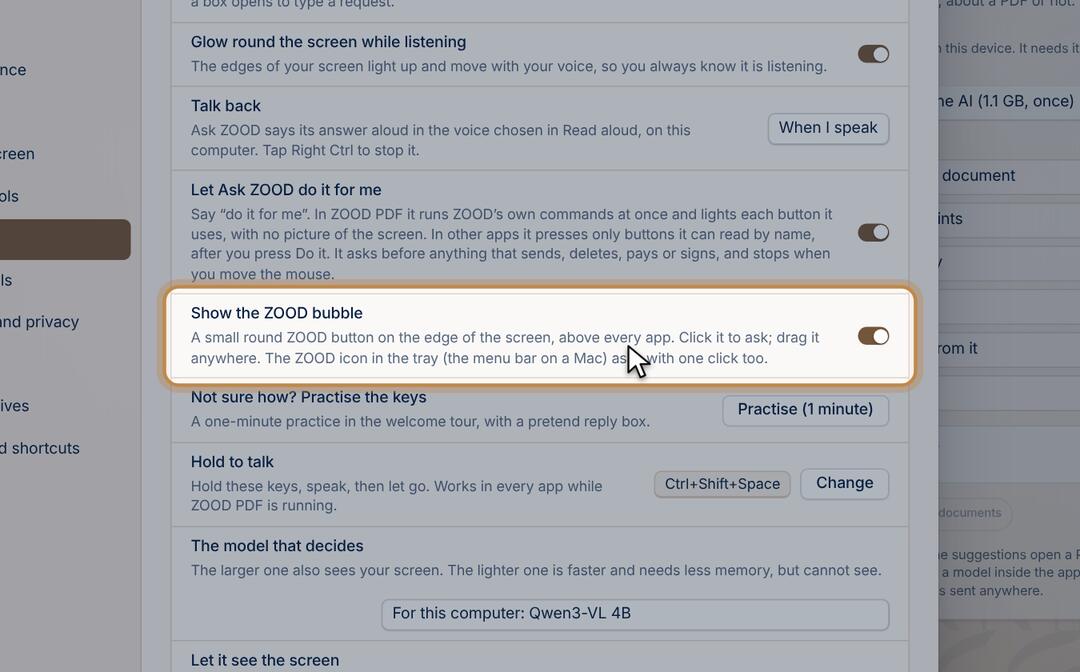
  4. Or click the ZOOD icon in the tray (the menu bar on a Mac), or the ZOOD bubble on the edge of the screen. Turn the bubble on in Settings › AI.
  5. Say “do it for me”: inside ZOOD PDF it runs its own commands at once and lights each button it uses; in other apps it presses buttons by their names after you agree. Turn it on or off in Settings › AI.
  6. Change the keys in Settings › AI › Ask ZOOD.
  • On a Mac it needs Input Monitoring, Accessibility and the microphone.

Ask for a presentation Desktop

ZOOD writes the slides file (pptx) itself after a few questions.

  1. Say or type to Ask ZOOD: “make me a presentation about…”.
  2. Fill in the topic and who it is for, then choose the number of slides (5, 8 or 12) and the look (Zood, Dark or Plain).
  3. Press Make it. The AI on your computer writes the slides, then ZOOD saves the file in Documents › ZOOD PDF and opens it.
  4. Every text on the slides can be edited in any slides app that opens pptx files.
  • It never makes up numbers or dates: it leaves [number] or [date] for you to fill in.
  • Writing on the computer can take a minute or two; a bigger model writes better.

On your computer

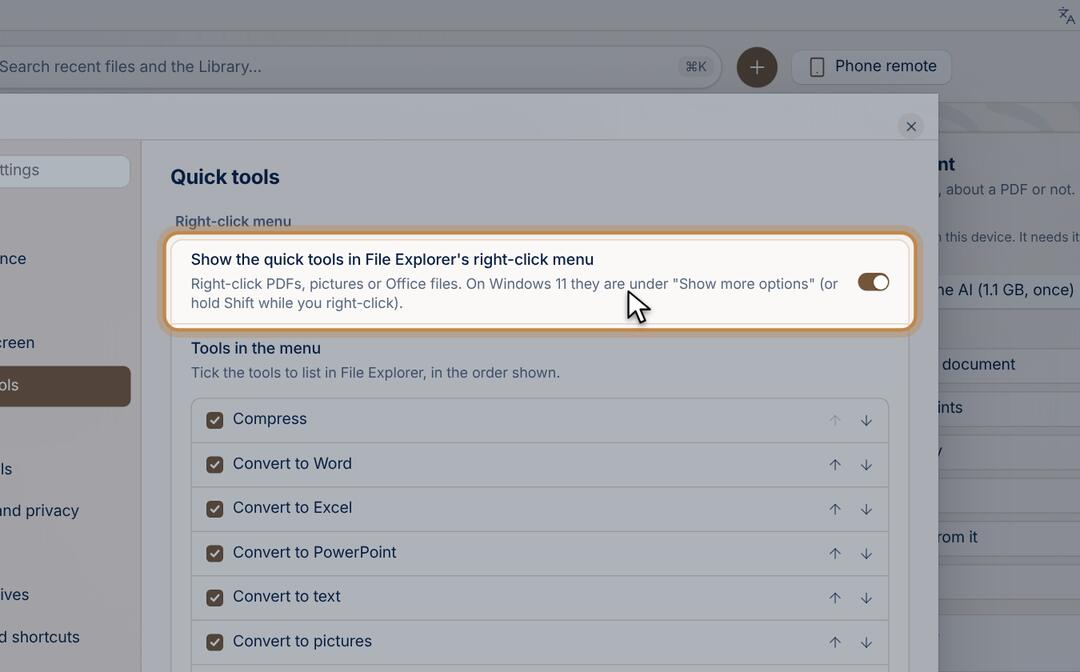
Quick tools without opening the app Desktop

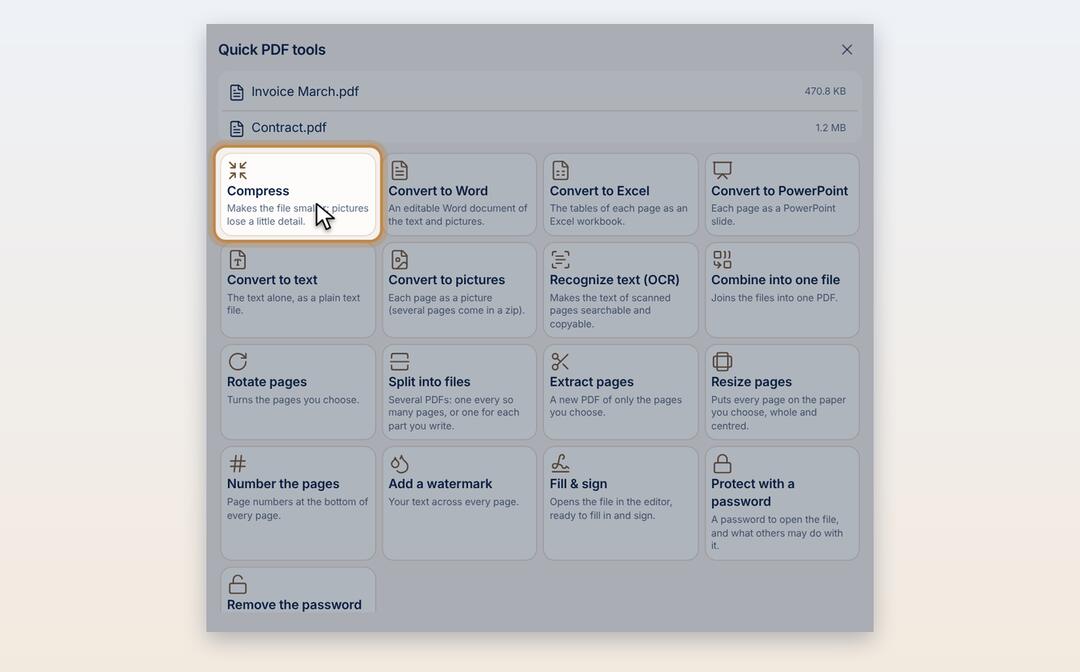
Right-click or the ring: compress, combine, convert straight away.

  1. Select one or more files in a folder, right-click, then choose the tool. A small window with every tool opens: press the one you want.
  2. On Windows 11 it is under "Show more options" at the bottom of the menu.
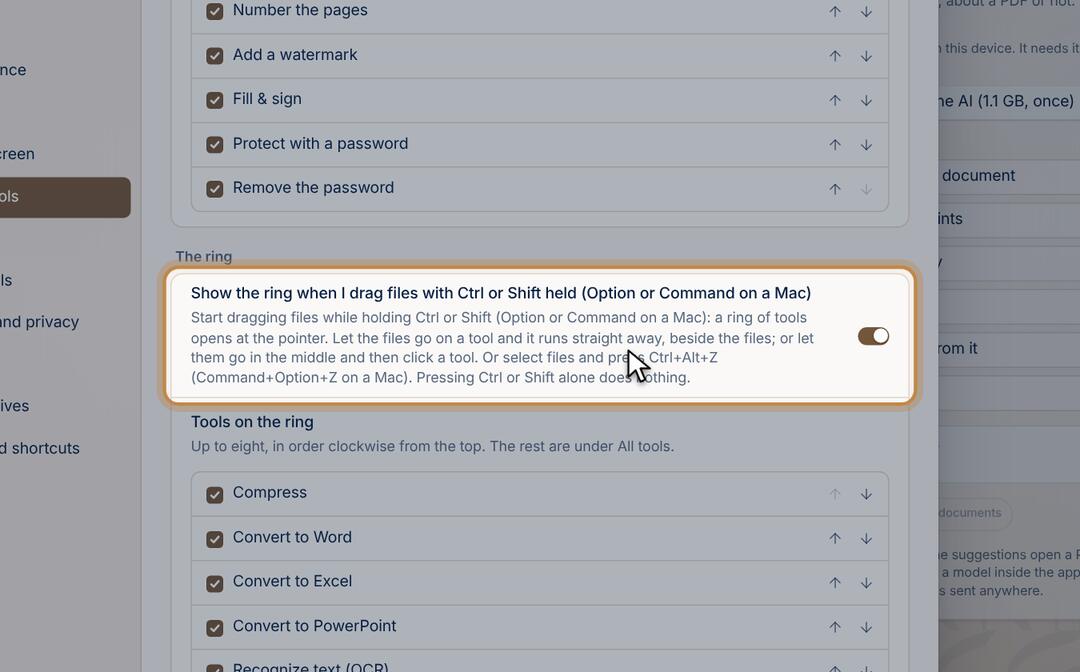
  3. Or drag the files with Ctrl or Shift held and the ring appears at the pointer. Let go on a tool and it runs straight away; the result is saved beside the original.
  4. In Settings › Quick tools, turn on the right-click menu and choose its tools and their order.
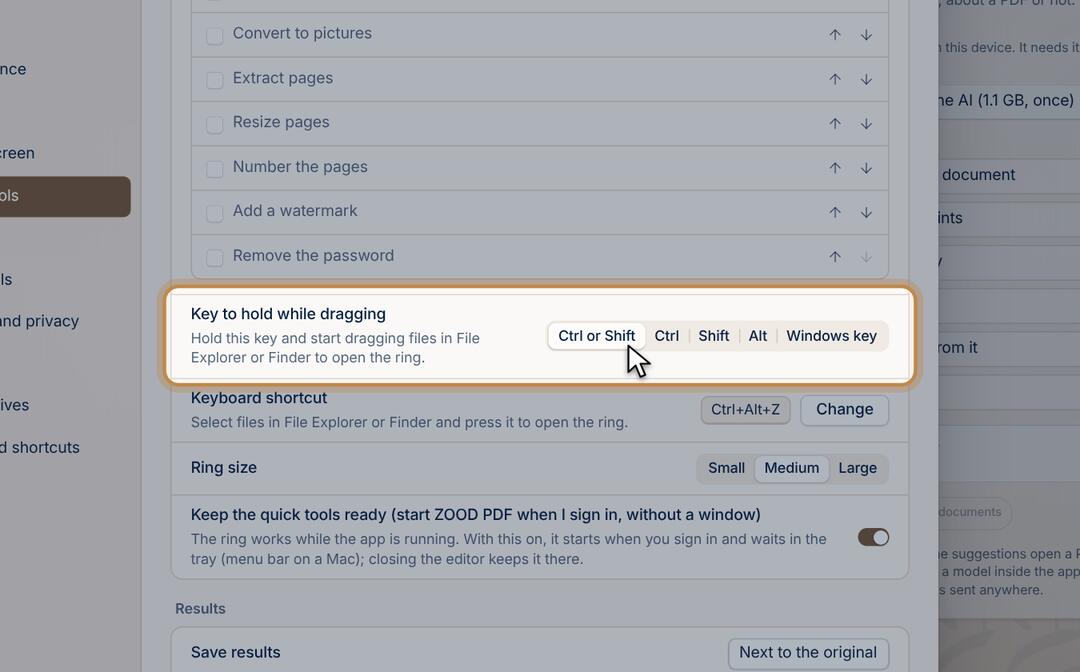
  5. In the same place, turn the ring on or off and choose its tools and its key (Ctrl+Alt+Z).
  6. And choose the key you hold while dragging to bring up the ring: Ctrl, Shift, Alt or the Windows key (Option or Command on a Mac).
Throw files on ZOOD to sort them Desktop

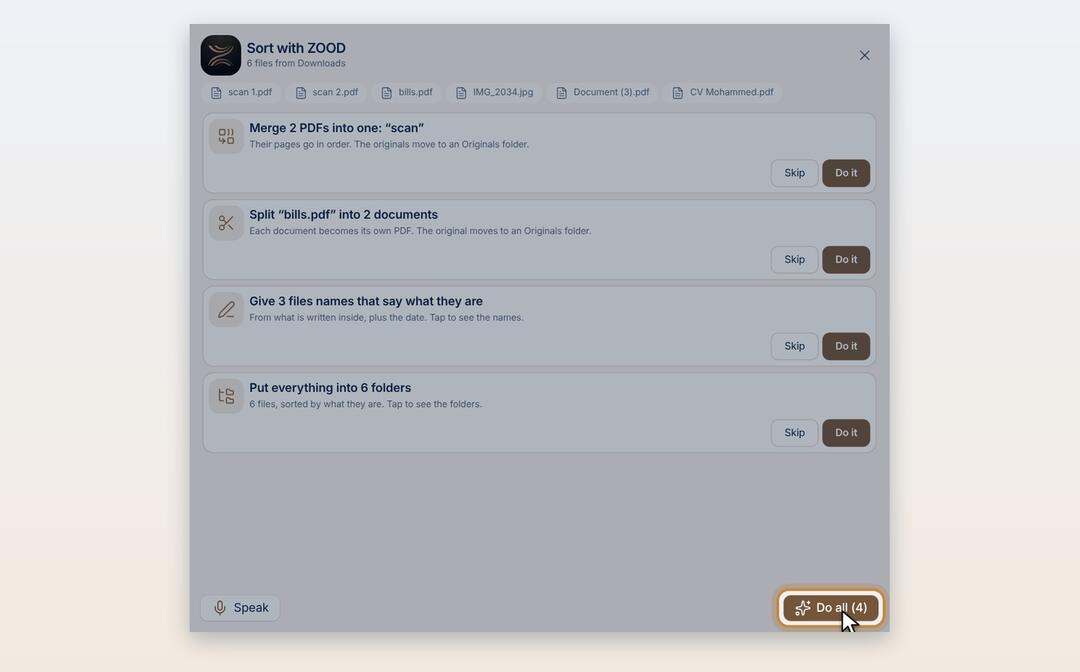
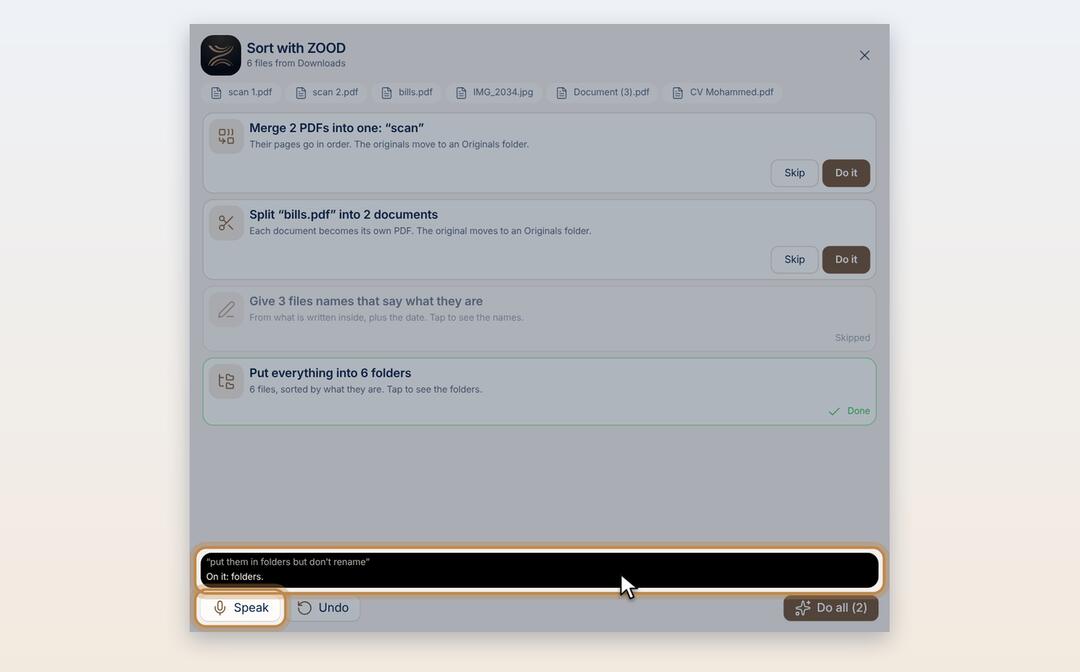
Drag messy files to the top of the screen, and ZOOD suggests merging, splitting, folders or names, on your computer.

  1. Select files on your Desktop or in Downloads and drag them, with no key held, to the top middle of the screen. ZOOD comes down from the top: let go on it.
  2. The Sort with ZOOD window reads the files on your computer and suggests: merge pages in a series, split a file holding several documents, clear names, and folders by what each file is. Press Do it on one, or Do all.
  3. Or press Speak and say, for example, “merge them but don’t rename”. ZOOD answers and does it.
  4. Undo puts every file back. None of your files is deleted or written over: the originals of merged files move to an Originals folder.
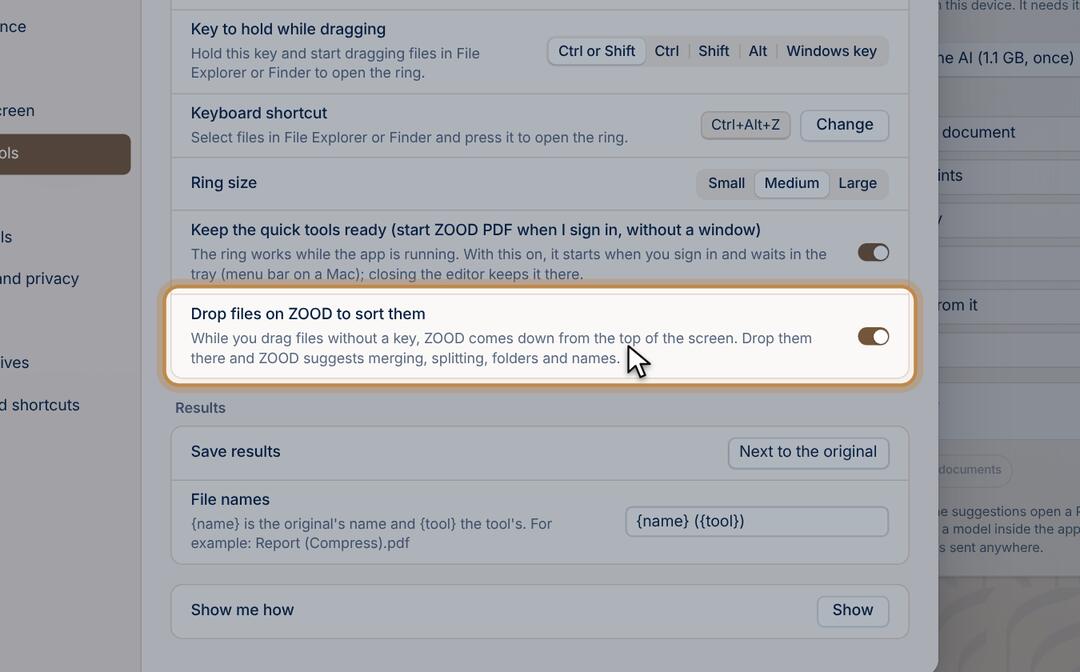
  5. In Settings › Quick tools, turn “Drop files on ZOOD to sort them” on or off, and keep the quick tools ready so ZOOD is there even with its windows closed.
  • You can also drop files on the ZOOD bubble, or drag them with Ctrl held and pick Sort on the ring.
  • With ZOOD’s on-device model downloaded, it also recognises documents whose names do not say what they are.

Control it from your phone Desktop

Present, move the pointer and send files from your phone.

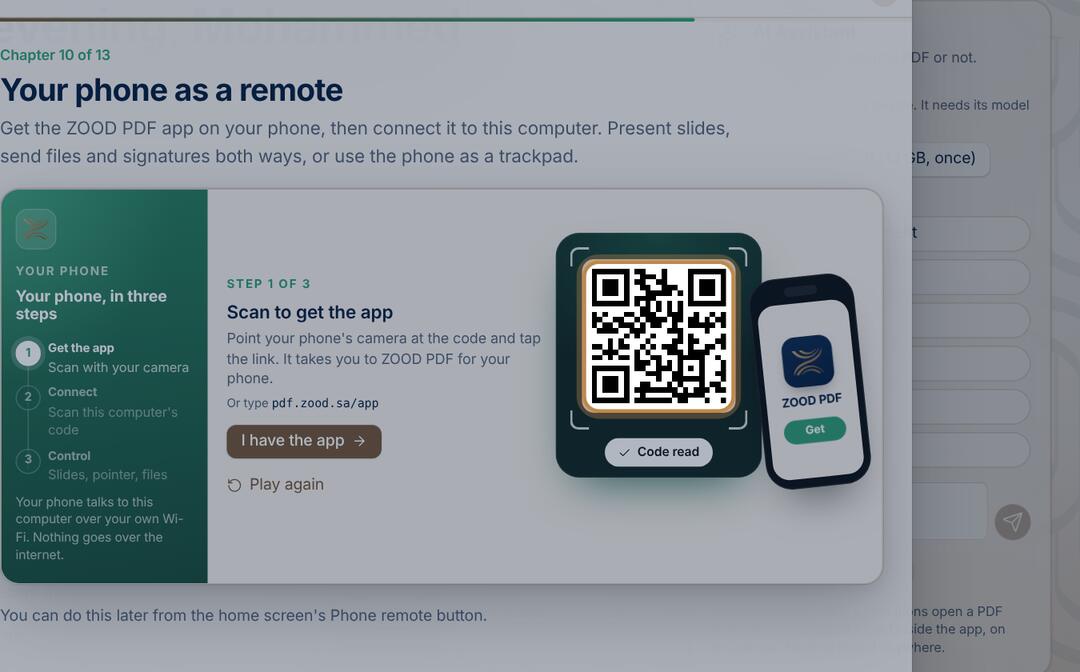
  1. The first time, get the ZOOD PDF app on your phone. In the welcome tour (Help › Welcome tour), open the Phone remote chapter and scan the code with the phone camera, or go to pdf.zoodrealty.com/app.
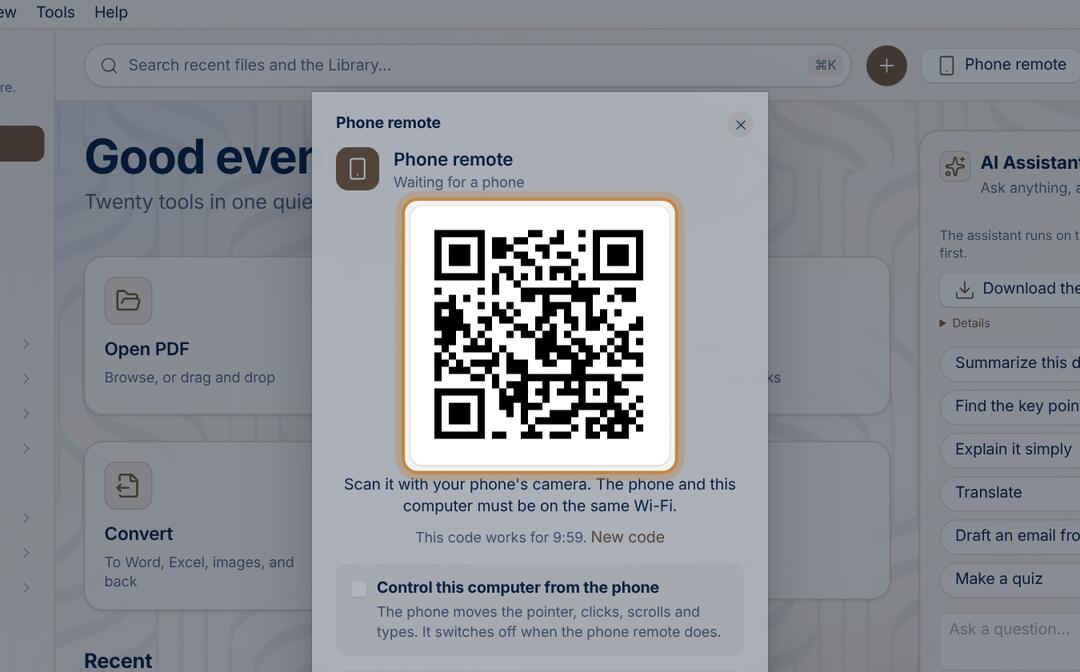
  2. In the Tools menu, choose Phone remote…, or press its button at the top of Home.
  3. Scan the code with the phone camera. Both must be on the same Wi-Fi.
  4. The first time, the computer asks “Allow this phone?”. Press Allow if it’s your phone. After that it connects straight away.

Make ZOOD PDF the default for PDFs Desktop

So PDFs open in it with a double-click.

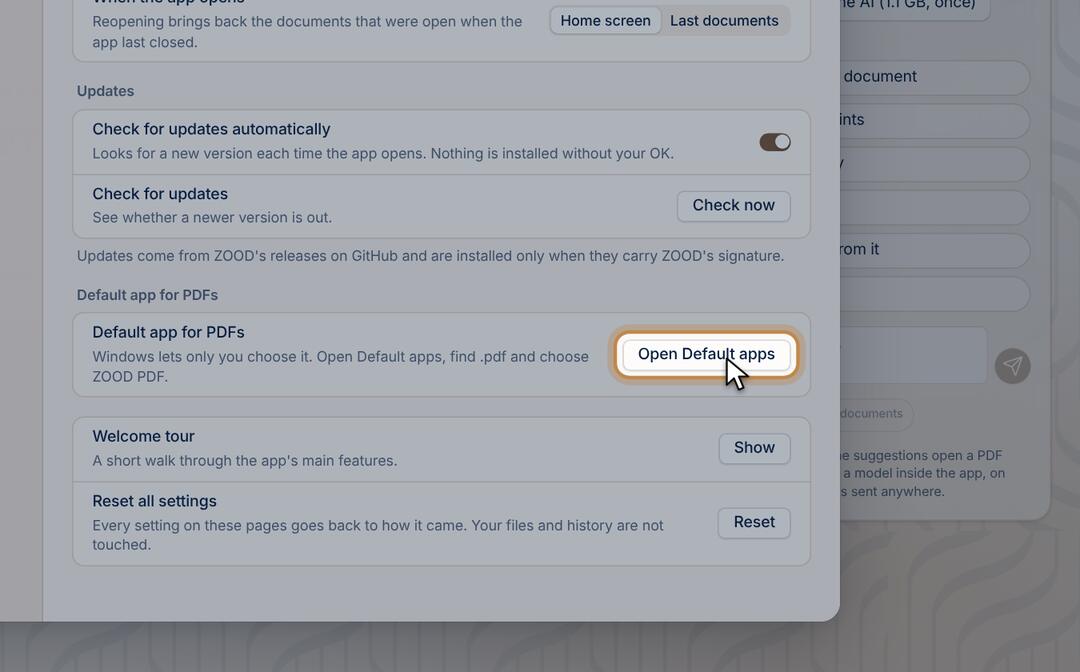
  1. Windows: Settings › General › Open Default apps, then choose ZOOD PDF for .pdf.
  2. Mac: select a PDF in Finder, File › Get Info, choose ZOOD PDF under Open with, then Change All.

Update the app Desktop

Updates arrive by themselves, or ask for one now.

  1. When there is an update a small bar appears: press Update.
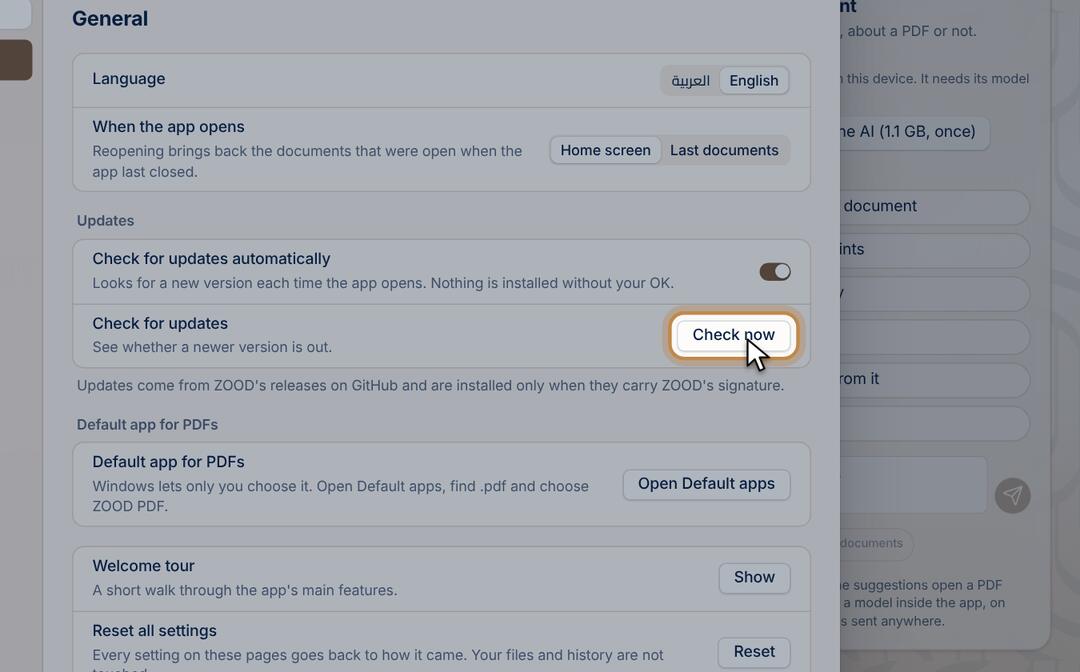
  2. Or open Settings › General and press Check now beside Check for updates.

Getting help

Report a problem or suggest an idea

No account: write the problem and follow its status, or vote for ideas.

  1. Open Help › Help & Support (or press F1).
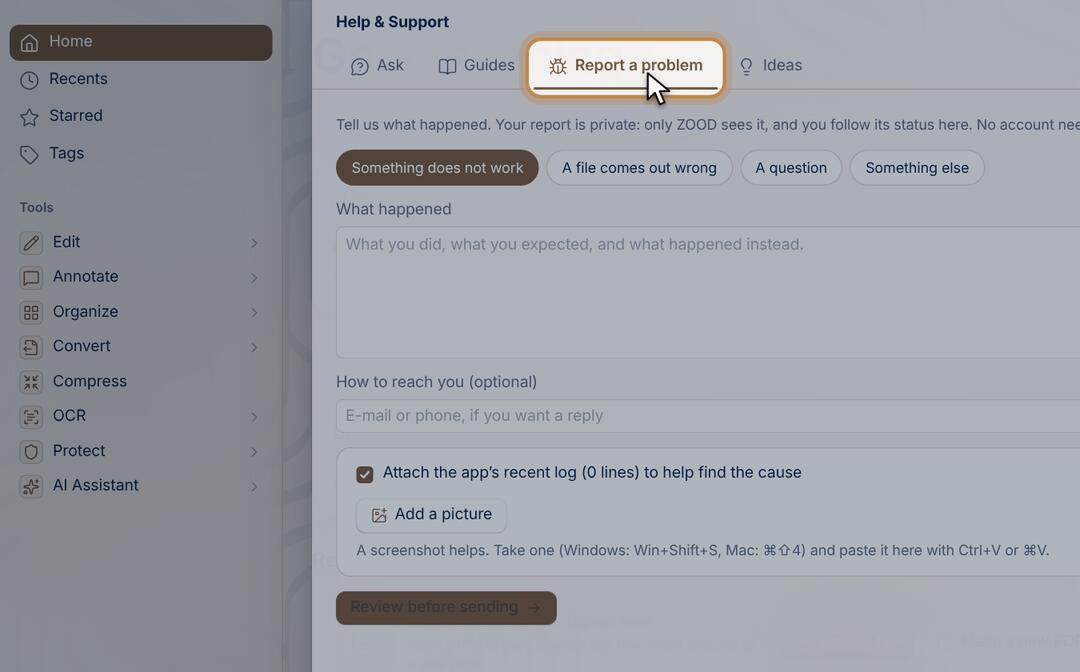
  2. Under Report a problem, write what happened. You see everything before it is sent, and choose whether to attach the log and a picture.
  3. Its status shows in the same list: open, in progress, fixed.
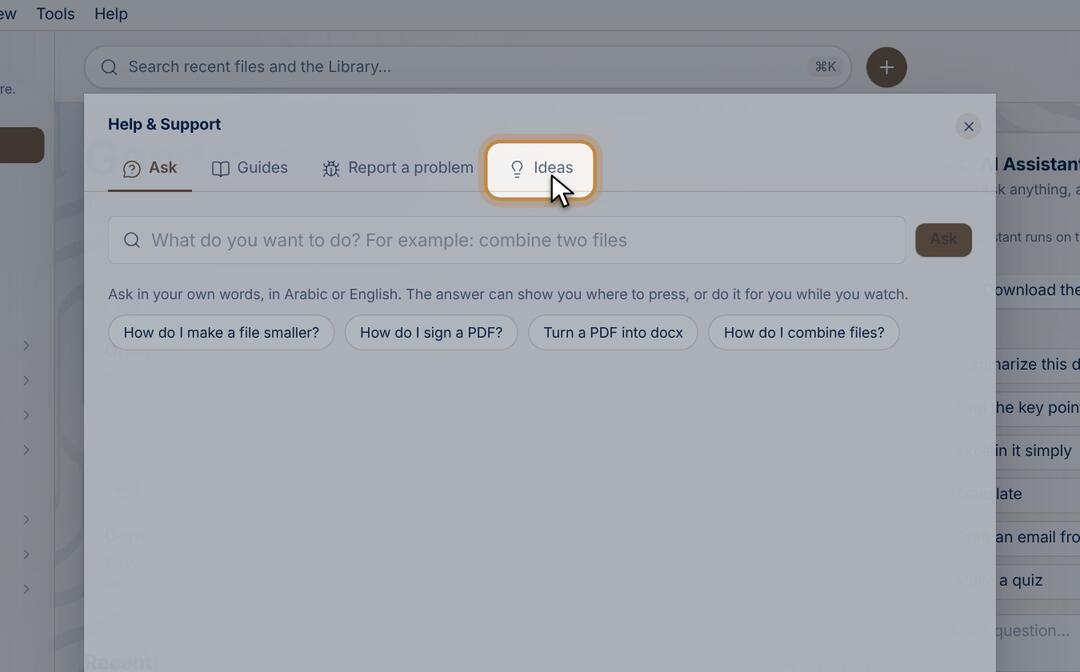
  4. Under Ideas, write your own idea or vote for others, with no account.

Common questions

Are my files uploaded anywhere?

No. Everything runs on your device. Nothing leaves it unless you choose to send a report or an idea.

Do I need an account or a subscription?

No. The app works with no account, support and voting included.

Does it work offline?

Yes, all of it, the AI too once its model is downloaded once.

Where are my signatures and details kept?

On this device only, in the system’s secure store for your details.

I cannot select or search the text

The file is most likely scanned pictures. Run Scan & OCR first.

Known limits

Didn’t find it? In the app: Help › Report a problem. No account, and you follow your report until it is fixed.